> ## Documentation Index
> Fetch the complete documentation index at: https://help.ip2up.com/llms.txt
> Use this file to discover all available pages before exploring further.
# Traffic Statistics
All proxy products of the platform need to be used in an overseas network environment, which requires customers to configure themselves.
This article explains how to view dynamic residential proxy traffic usage on the **[Ip2up](https://www.Ip2up.com/zh-cn/)** platform.
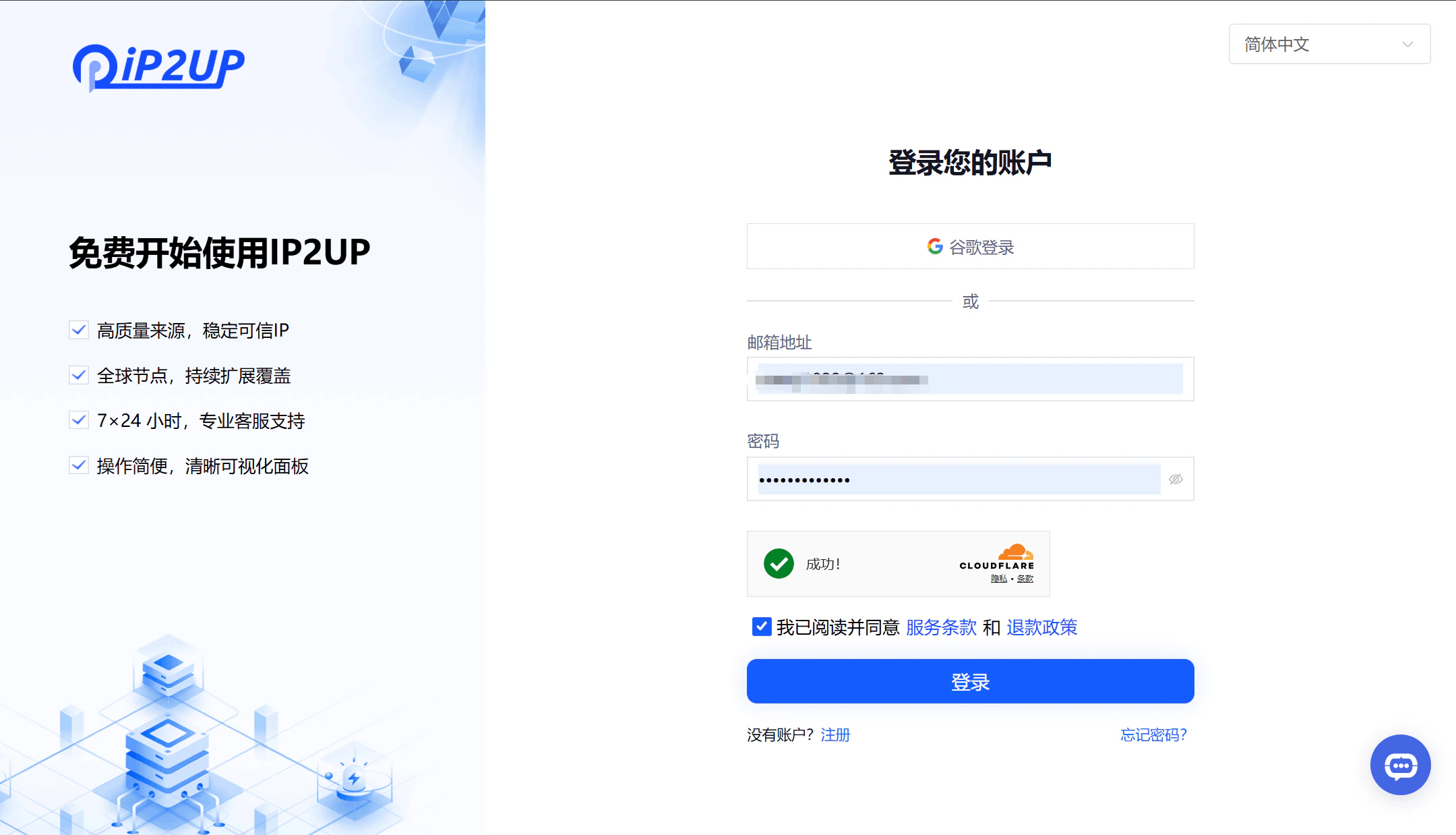
### 1. Log in to the Ip2up Platform
Open your browser and visit the [Ip2up Official Website](https://www.ip2up.com). Enter your account username and password to log in.
 ### 2. View Traffic Usage Details
After logging in, the system will automatically redirect you to the user center dashboard:
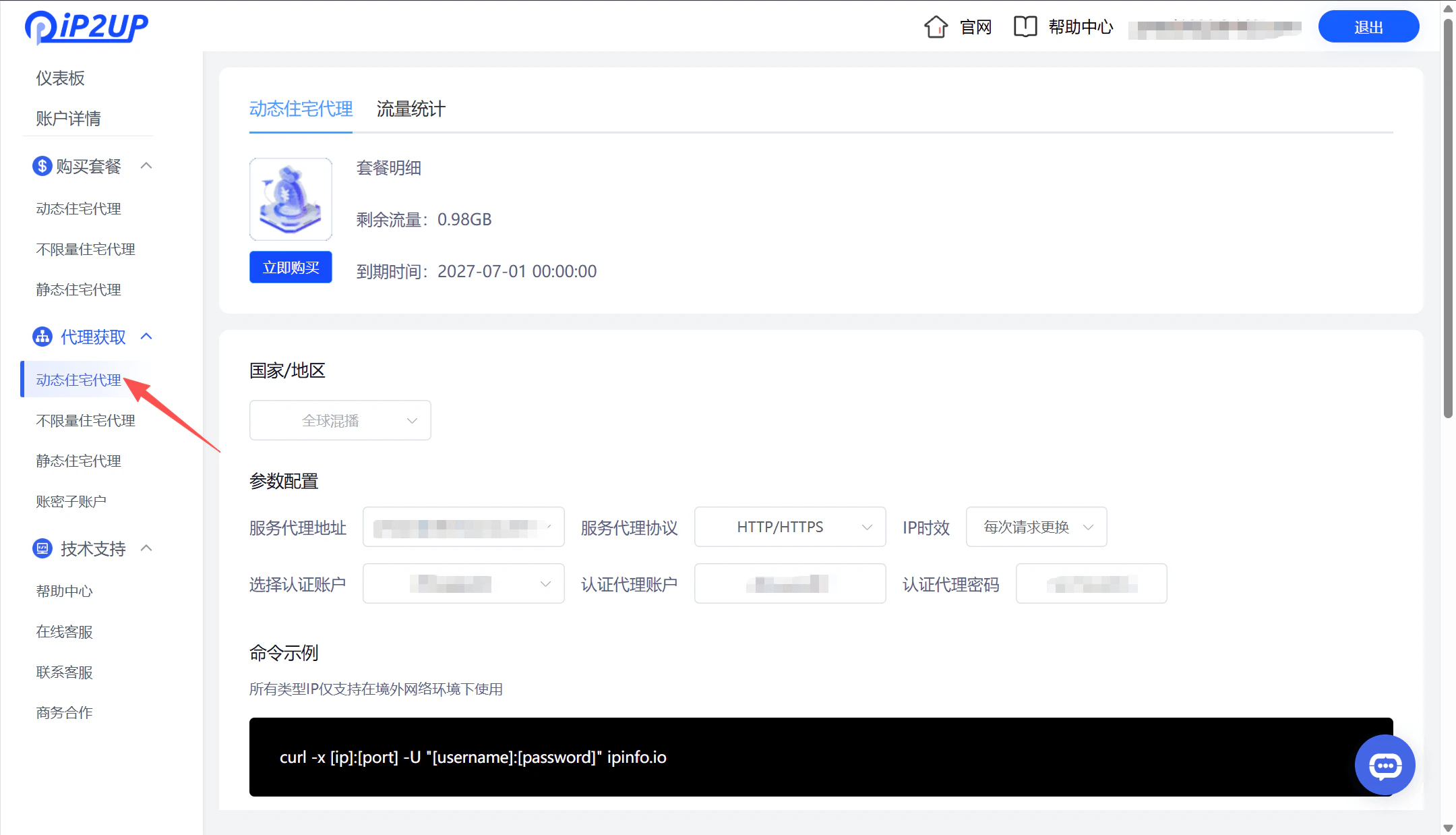
1. Click **“Dynamic Residential Proxy”** in the left-side menu
2. The page will display the purchased package information
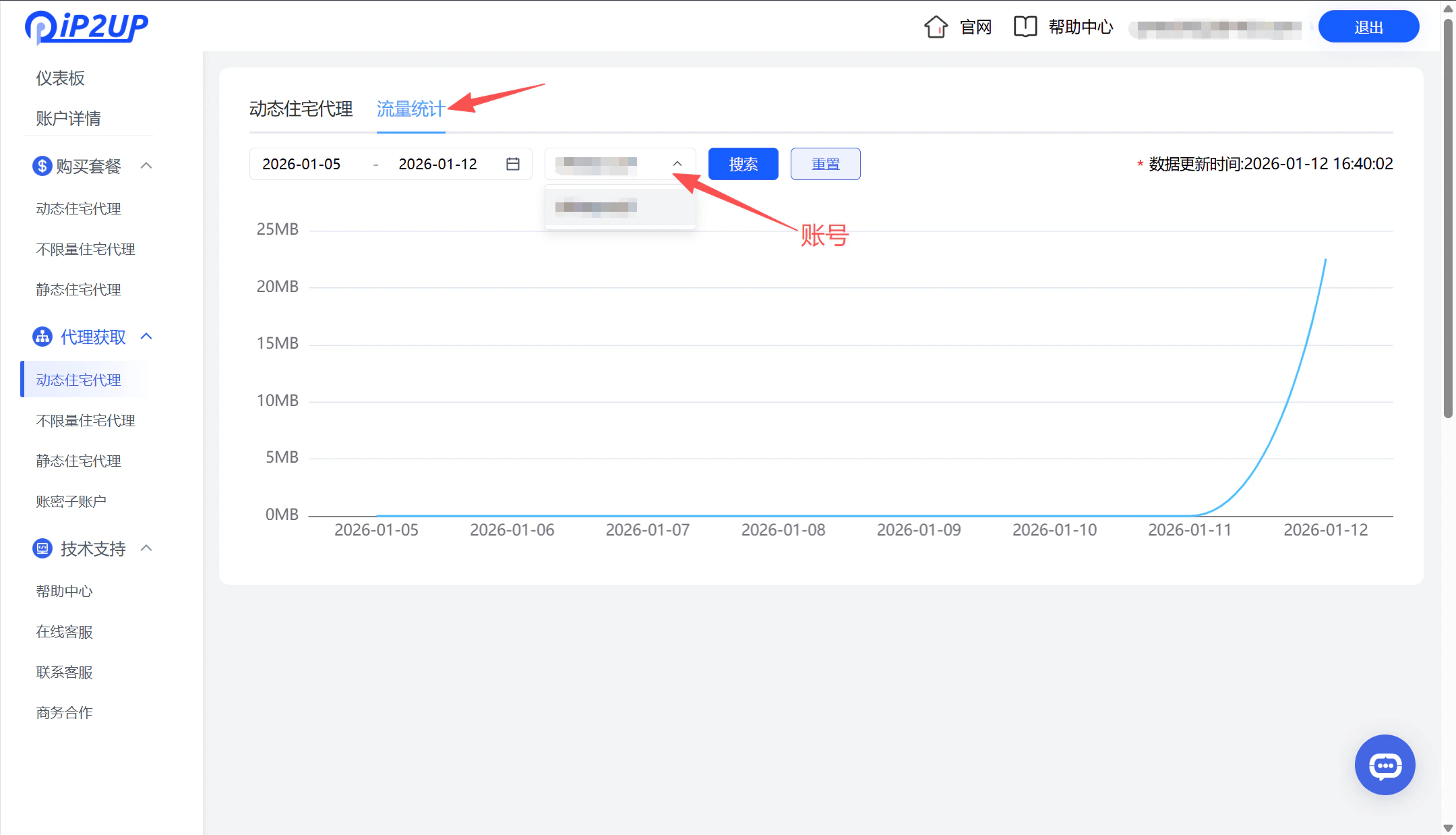
3. Click **“Traffic Statistics”**
4. Select the corresponding account to view detailed traffic usage information
### 2. View Traffic Usage Details
After logging in, the system will automatically redirect you to the user center dashboard:
1. Click **“Dynamic Residential Proxy”** in the left-side menu
2. The page will display the purchased package information
3. Click **“Traffic Statistics”**
4. Select the corresponding account to view detailed traffic usage information