> ## Documentation Index
> Fetch the complete documentation index at: https://help.ip2up.com/llms.txt
> Use this file to discover all available pages before exploring further.
# mbbrowser Integration Guide
All proxy products on the platform must be used in an overseas network environment. Users are required to configure the overseas network environment on their own.
This tutorial explains how to configure **[Ip2up](https://www.Ip2up.com/zh-cn/)** proxy IPs in the **mbbrowser anti-detection browser** to create a secure and isolated multi-account operation environment.
The usage method for dynamic residential IPs is the same as for static residential IPs
### Step 1: Download and Install the mbbrowser Client
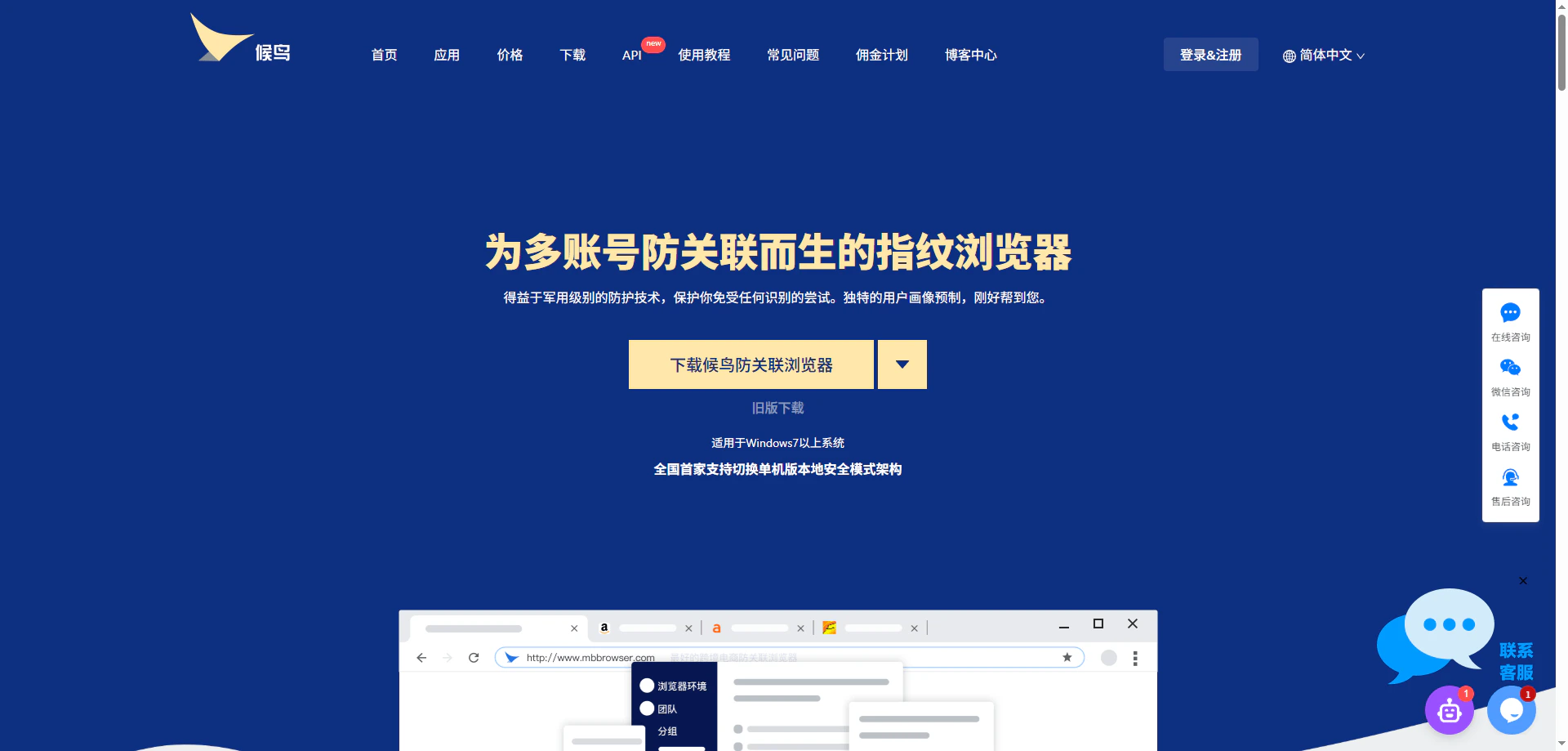
Visit the **mbbrowser official website**, register an account, download the client, complete the installation, and then launch the software.
 ### Step 2: Create a New Environment Configuration
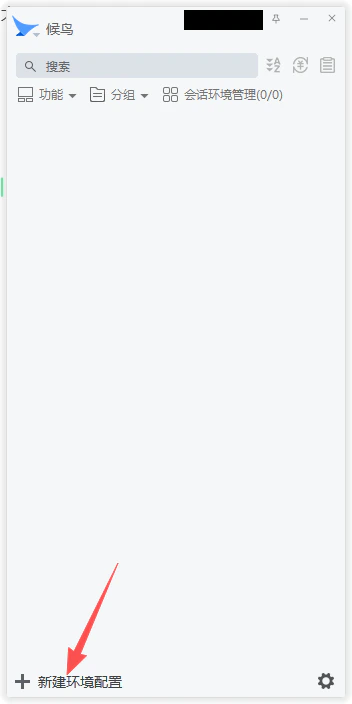
After opening the client, click the **Create New Environment Configuration** button at the bottom of the main interface.
### Step 2: Create a New Environment Configuration
After opening the client, click the **Create New Environment Configuration** button at the bottom of the main interface.
 ### Step 3: Configure the Environment and Select the Proxy Type
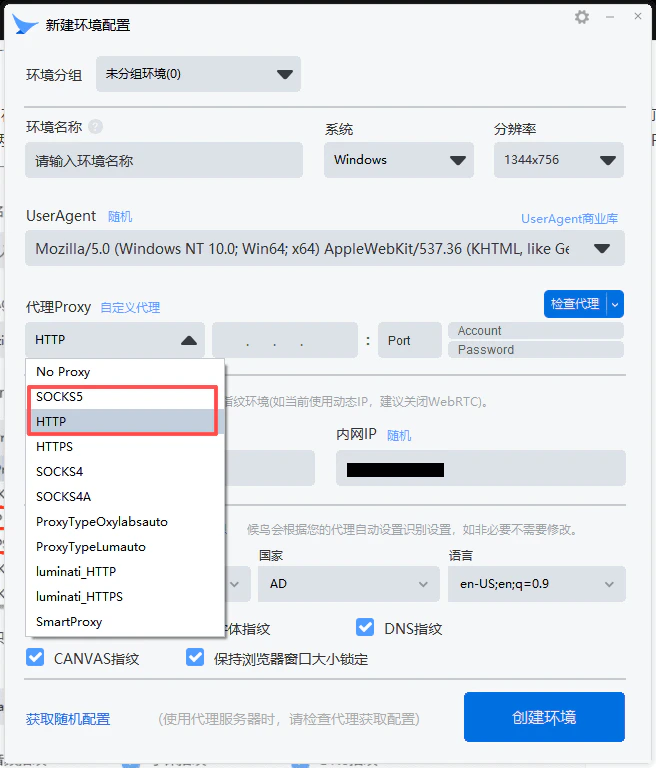
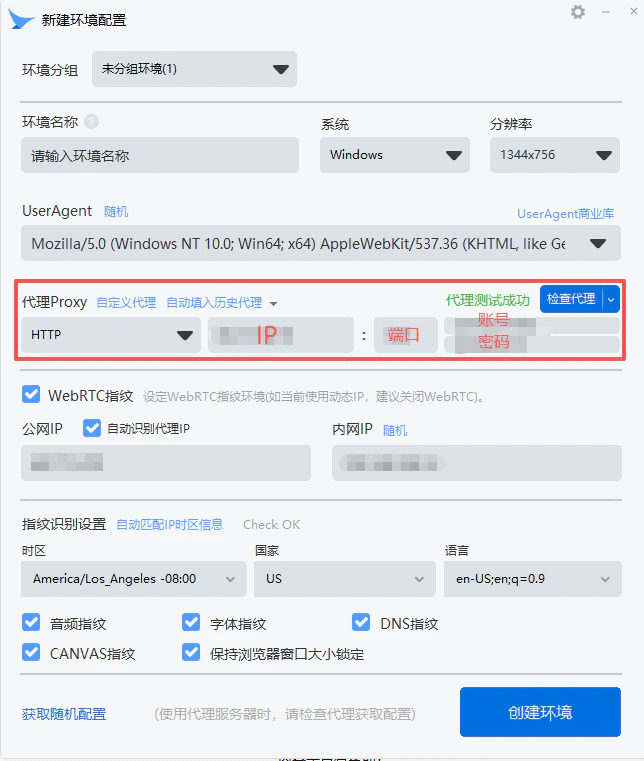
In the pop-up window for creating a new environment, fill in basic information such as the environment name, then select the appropriate proxy protocol in the proxy settings section.
**Note:** Ip2up currently supports **HTTP** and **SOCKS5** proxy protocols. Please choose according to your actual needs.
### Step 3: Configure the Environment and Select the Proxy Type
In the pop-up window for creating a new environment, fill in basic information such as the environment name, then select the appropriate proxy protocol in the proxy settings section.
**Note:** Ip2up currently supports **HTTP** and **SOCKS5** proxy protocols. Please choose according to your actual needs.
 ### Step 4: Obtain Ip2up Proxy Information
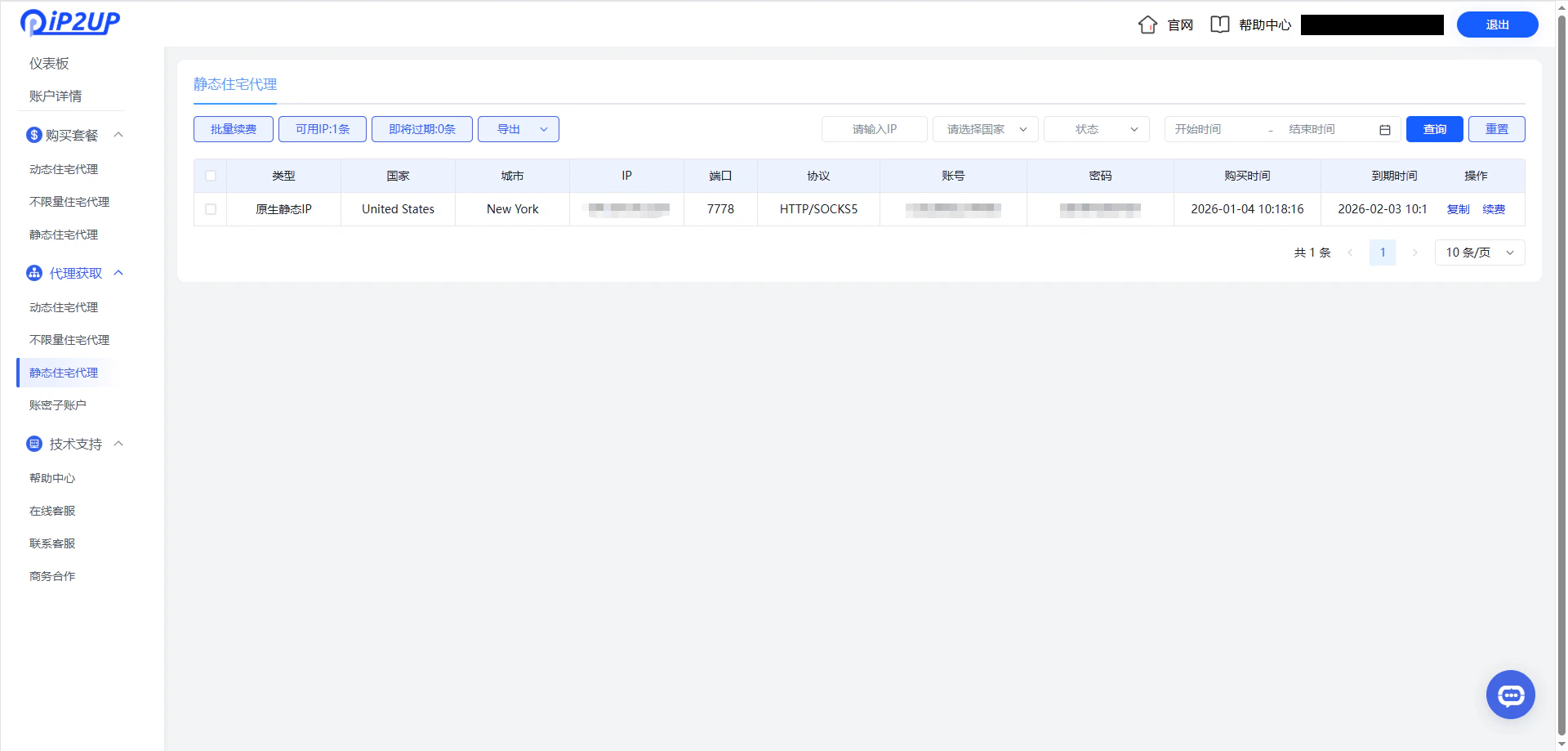
Log in to the [Ip2up Proxy Platform](https://www.Ip2up.com/zh-cn/), go to the **Static Residential Proxy** page, and view and copy your proxy information (server address, port, username, and password).
### Step 4: Obtain Ip2up Proxy Information
Log in to the [Ip2up Proxy Platform](https://www.Ip2up.com/zh-cn/), go to the **Static Residential Proxy** page, and view and copy your proxy information (server address, port, username, and password).
 ### Step 5: Enter Proxy Information and Test Connectivity
Enter the copied proxy information into the corresponding fields in the mbbrowser proxy settings, then click the **Check Proxy** button to test proxy IP connectivity.
After confirming the test is successful, click **Create Environment** to complete the configuration.
### Step 5: Enter Proxy Information and Test Connectivity
Enter the copied proxy information into the corresponding fields in the mbbrowser proxy settings, then click the **Check Proxy** button to test proxy IP connectivity.
After confirming the test is successful, click **Create Environment** to complete the configuration.
 ### Step 6: Launch the Browser Environment
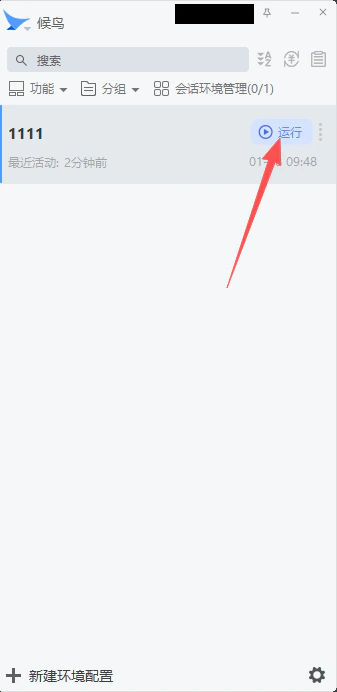
Return to the mbbrowser main interface, locate the newly created environment in the environment list, and click the **Run** button to launch the browser.
### Step 6: Launch the Browser Environment
Return to the mbbrowser main interface, locate the newly created environment in the environment list, and click the **Run** button to launch the browser.
 ### Step 7: Verify the Proxy IP
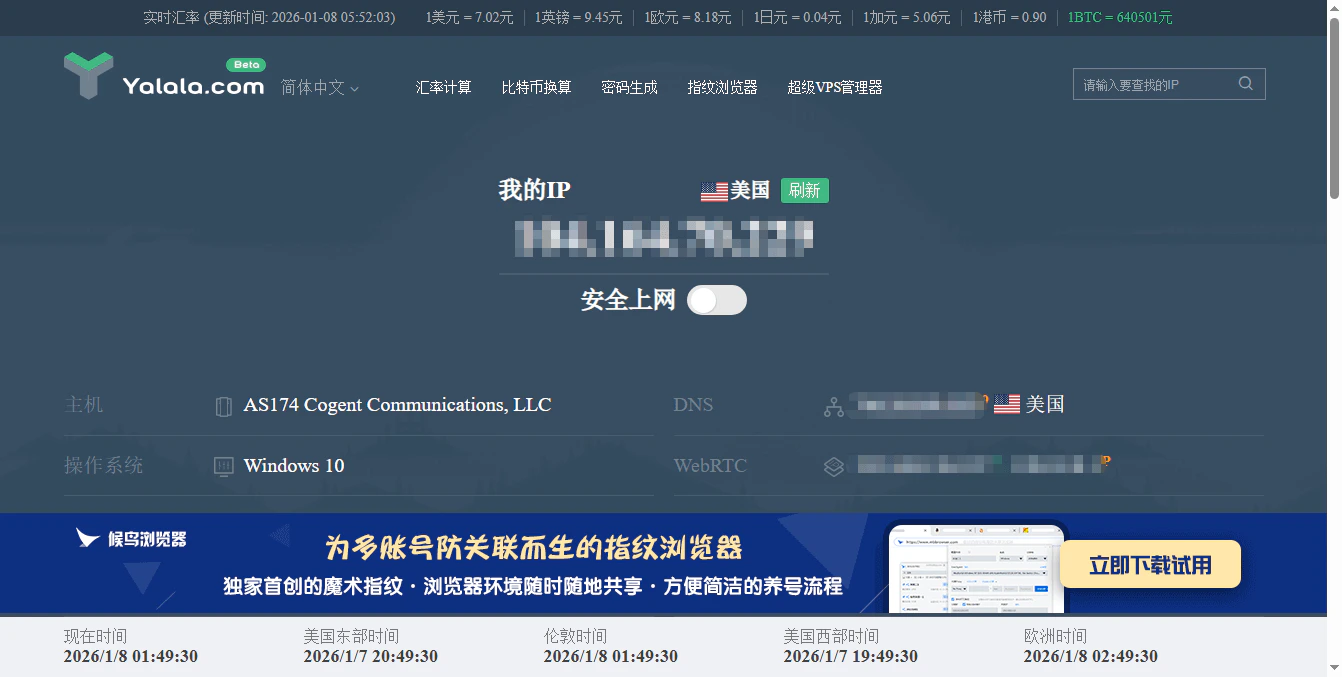
After the browser starts, the page will automatically display the current IP information, or you can visit an IP checking website to further confirm whether the proxy IP has taken effect.
### Step 7: Verify the Proxy IP
After the browser starts, the page will automatically display the current IP information, or you can visit an IP checking website to further confirm whether the proxy IP has taken effect.
 ✅ **At this point, Ip2up proxy IP has been successfully configured in the mbbrowser anti-detection browser, and you can begin secure and isolated multi-account operations.**