> ## Documentation Index
> Fetch the complete documentation index at: https://help.ip2up.com/llms.txt
> Use this file to discover all available pages before exploring further.
# iPhone
All proxy products on the platform must be used in an overseas network environment. Users are required to configure the overseas network environment on their own.
Before integrating a proxy into your iPhone device, please ensure that you have obtained valid proxy service information and have confirmed that the proxy service is operating normally.
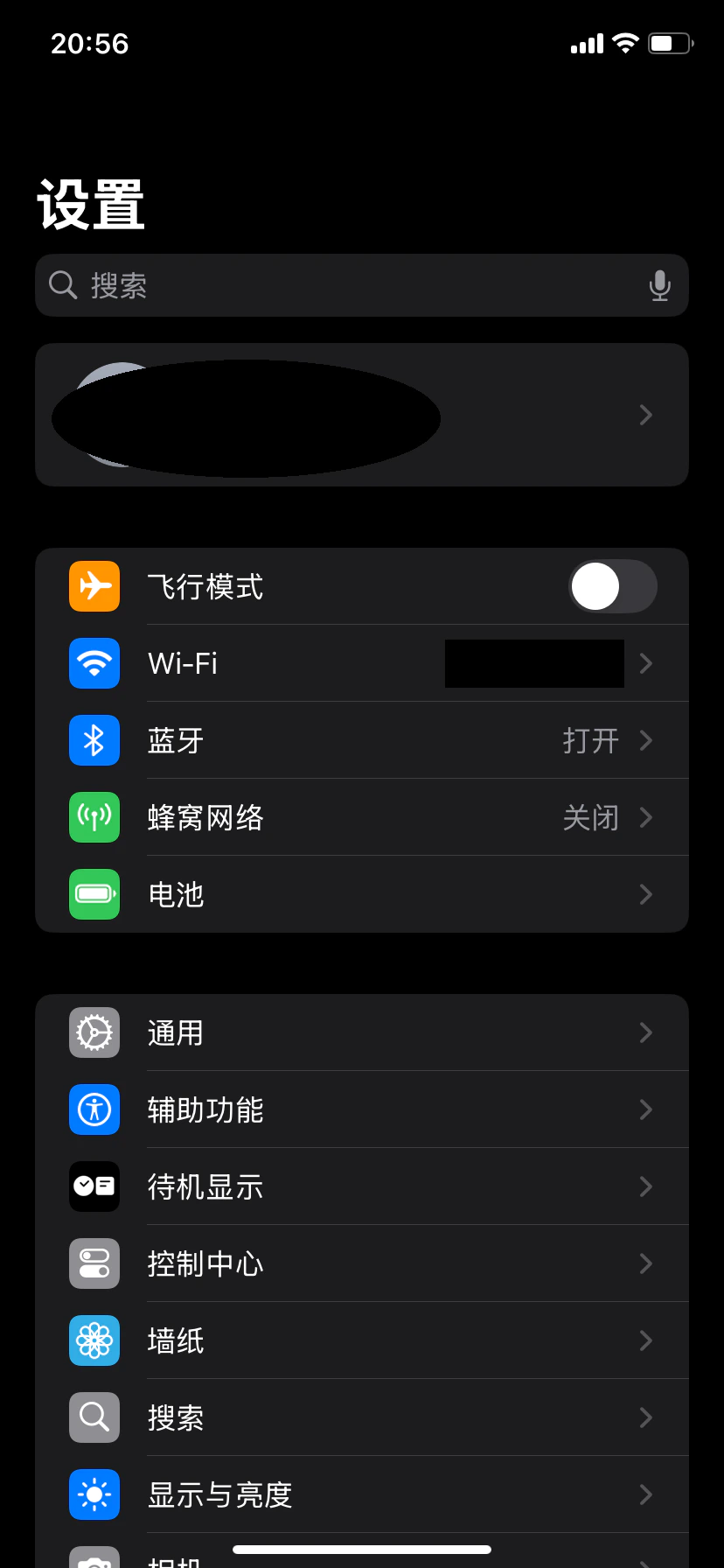
### 1. Open Wi-Fi Settings
Open **Settings** on your iPhone → tap **Wi-Fi**.
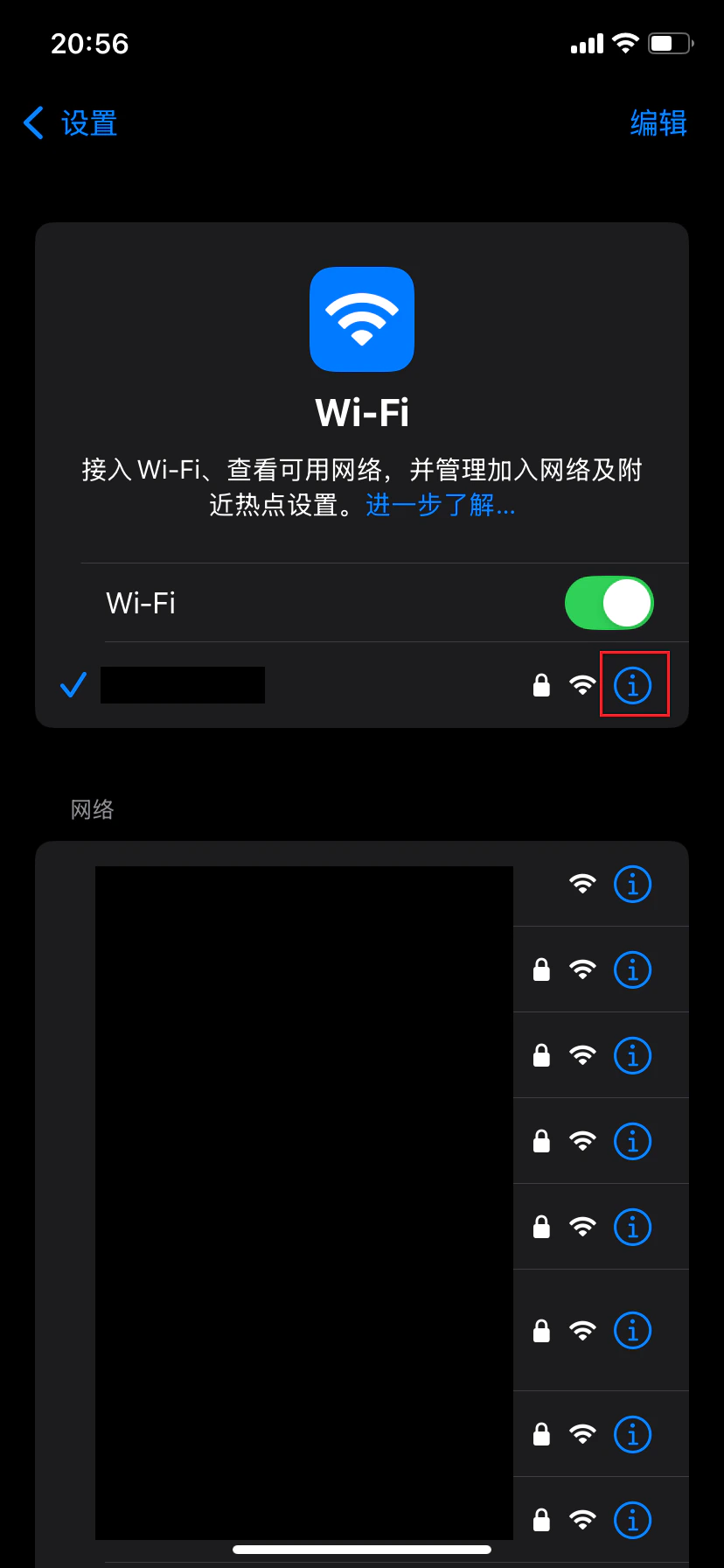
 ### 2. Open Connected Network Configuration
In the Wi-Fi list, find the currently connected network and tap the **information icon (i)** on the right to enter the network details page.
### 2. Open Connected Network Configuration
In the Wi-Fi list, find the currently connected network and tap the **information icon (i)** on the right to enter the network details page.
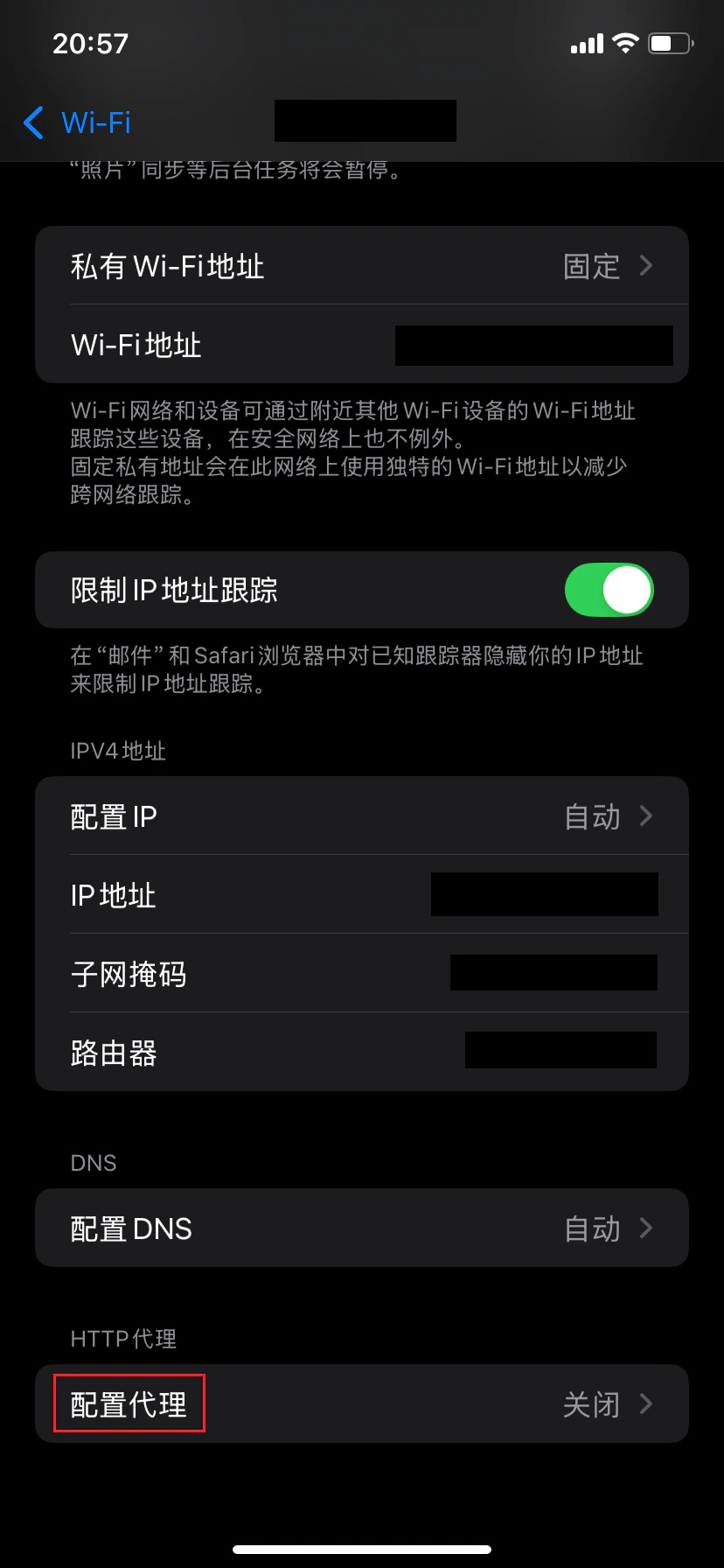
 ### 3. Open Proxy Configuration
On the network details page, scroll down and tap **Configure Proxy**.
### 3. Open Proxy Configuration
On the network details page, scroll down and tap **Configure Proxy**.
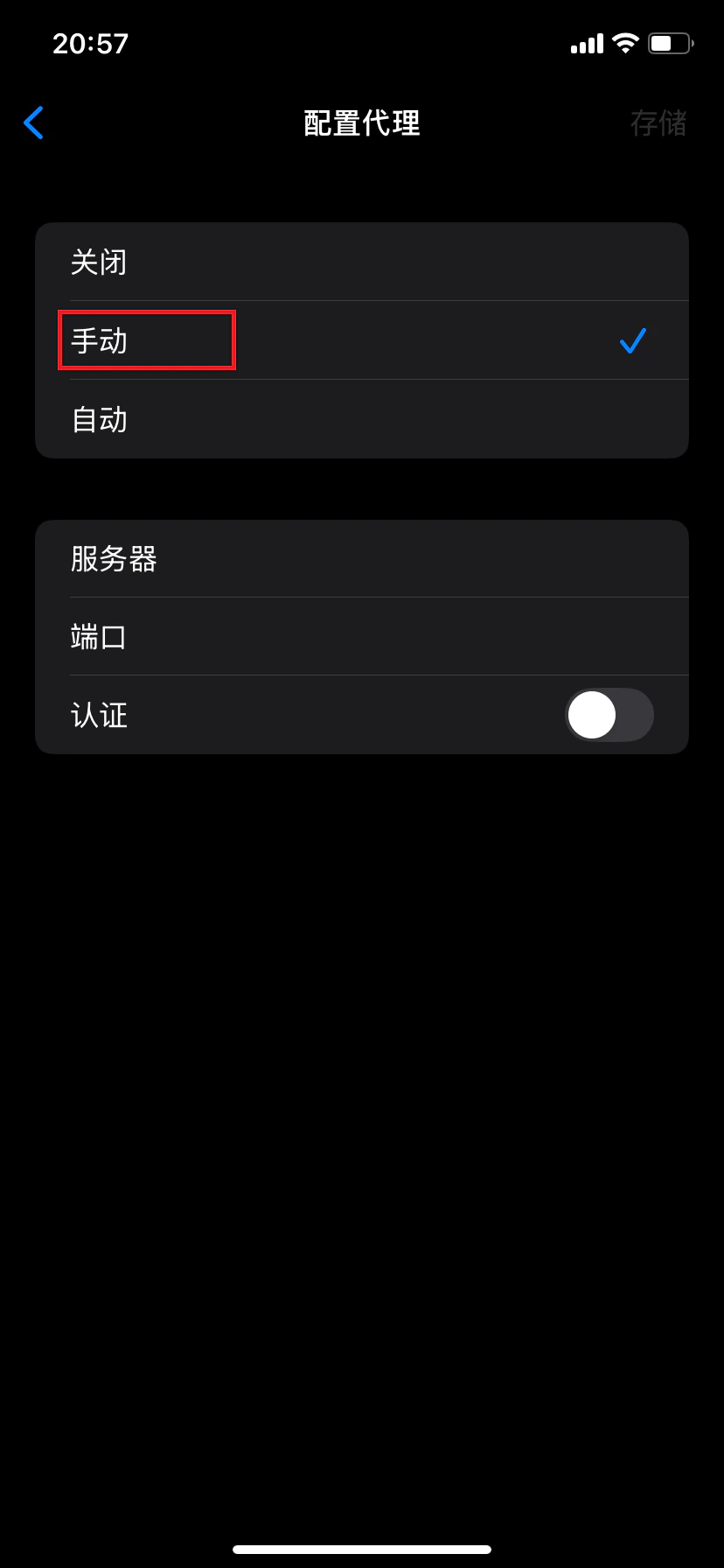
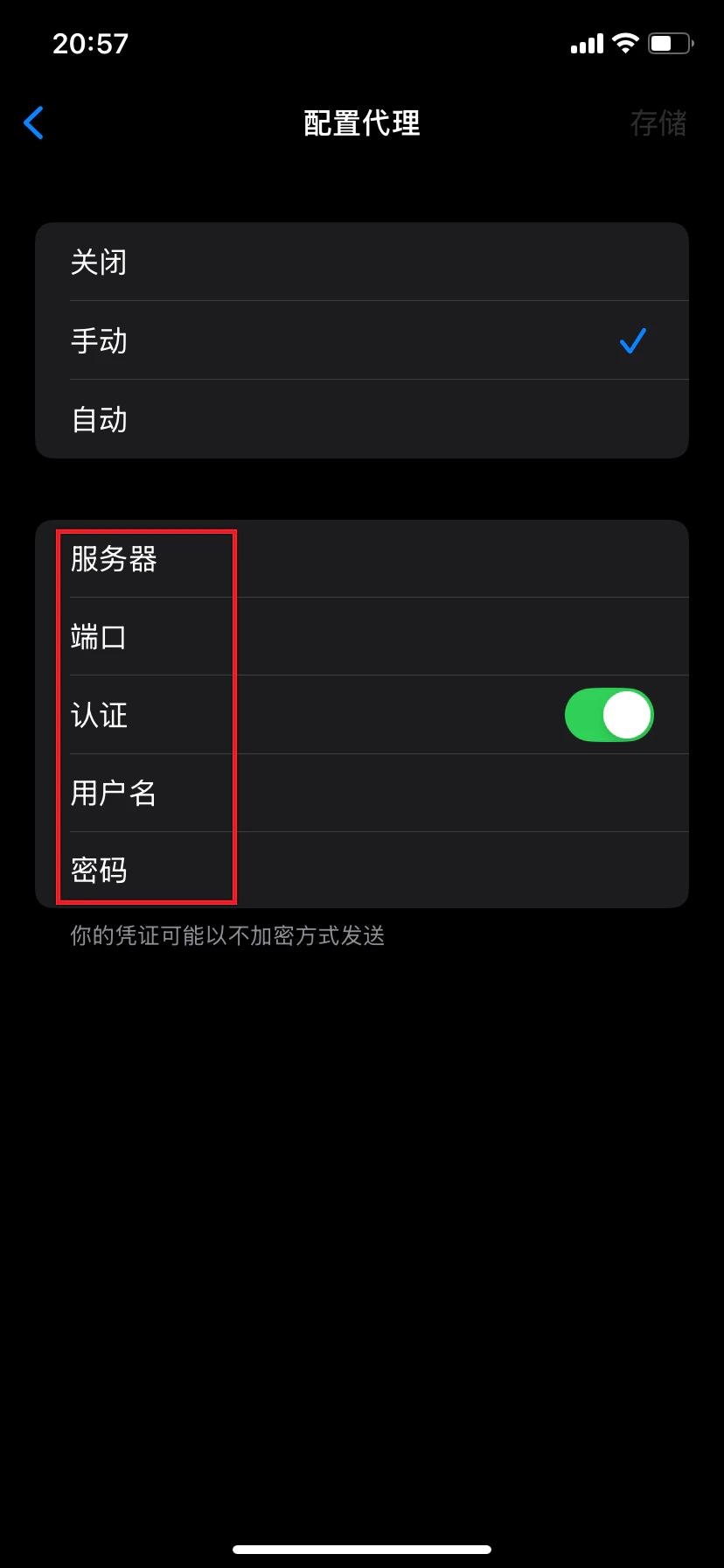
 ### 4. Select Manual Proxy Mode
On the proxy configuration page, select **Manual** mode.
### 4. Select Manual Proxy Mode
On the proxy configuration page, select **Manual** mode.
 ### 5. Enter Proxy Information and Save
1. Enable the **Authentication** switch
2. Fill in the following information:
* **Server**: Proxy server address
* **Port**: Proxy service port
* **Username**: Proxy username
* **Password**: Proxy password
3. Tap **Save** in the top-right corner to apply the settings
### 5. Enter Proxy Information and Save
1. Enable the **Authentication** switch
2. Fill in the following information:
* **Server**: Proxy server address
* **Port**: Proxy service port
* **Username**: Proxy username
* **Password**: Proxy password
3. Tap **Save** in the top-right corner to apply the settings
 ### 6. Verify Proxy Connection
Open a browser and visit an IP detection website to confirm that the displayed IP address matches the proxy IP you configured. If they match, the proxy setup is successful.
### Notes
* This configuration applies at the Wi-Fi level and only takes effect for the current Wi-Fi network
* You must reconfigure the proxy after switching to a different Wi-Fi network
* Ensure that the proxy information is entered correctly and that the proxy service supports your intended use case
✅ **At this point, the Wi-Fi proxy configuration on the iPhone device is complete, and you can access the network through the proxy server.**
### 6. Verify Proxy Connection
Open a browser and visit an IP detection website to confirm that the displayed IP address matches the proxy IP you configured. If they match, the proxy setup is successful.
### Notes
* This configuration applies at the Wi-Fi level and only takes effect for the current Wi-Fi network
* You must reconfigure the proxy after switching to a different Wi-Fi network
* Ensure that the proxy information is entered correctly and that the proxy service supports your intended use case
✅ **At this point, the Wi-Fi proxy configuration on the iPhone device is complete, and you can access the network through the proxy server.**