> ## Documentation Index
> Fetch the complete documentation index at: https://help.ip2up.com/llms.txt
> Use this file to discover all available pages before exploring further.
# Registration and Login
All proxy products of the platform need to be used in an overseas network environment, which requires customers to configure themselves.
This article will introduce the basic process from login to using IP port services on the **[Ip2up](https://www.Ip2up.com/zh-cn/)** platform.
### Register Account
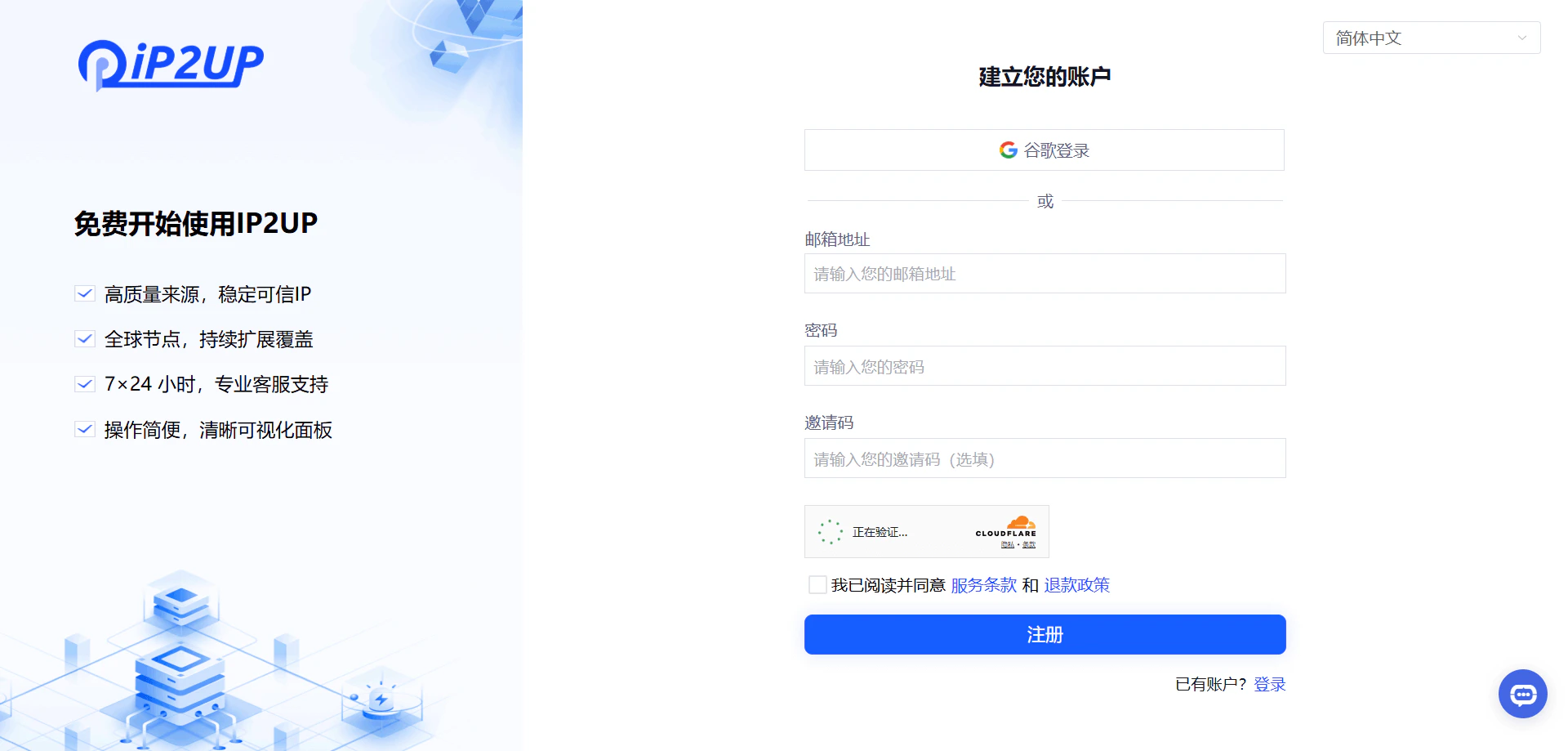
Open [Ip2up.com](https://www.ip2up.com/) in your browser, click the registration button, fill in personal information, and complete registration via email.
 ### Login Account
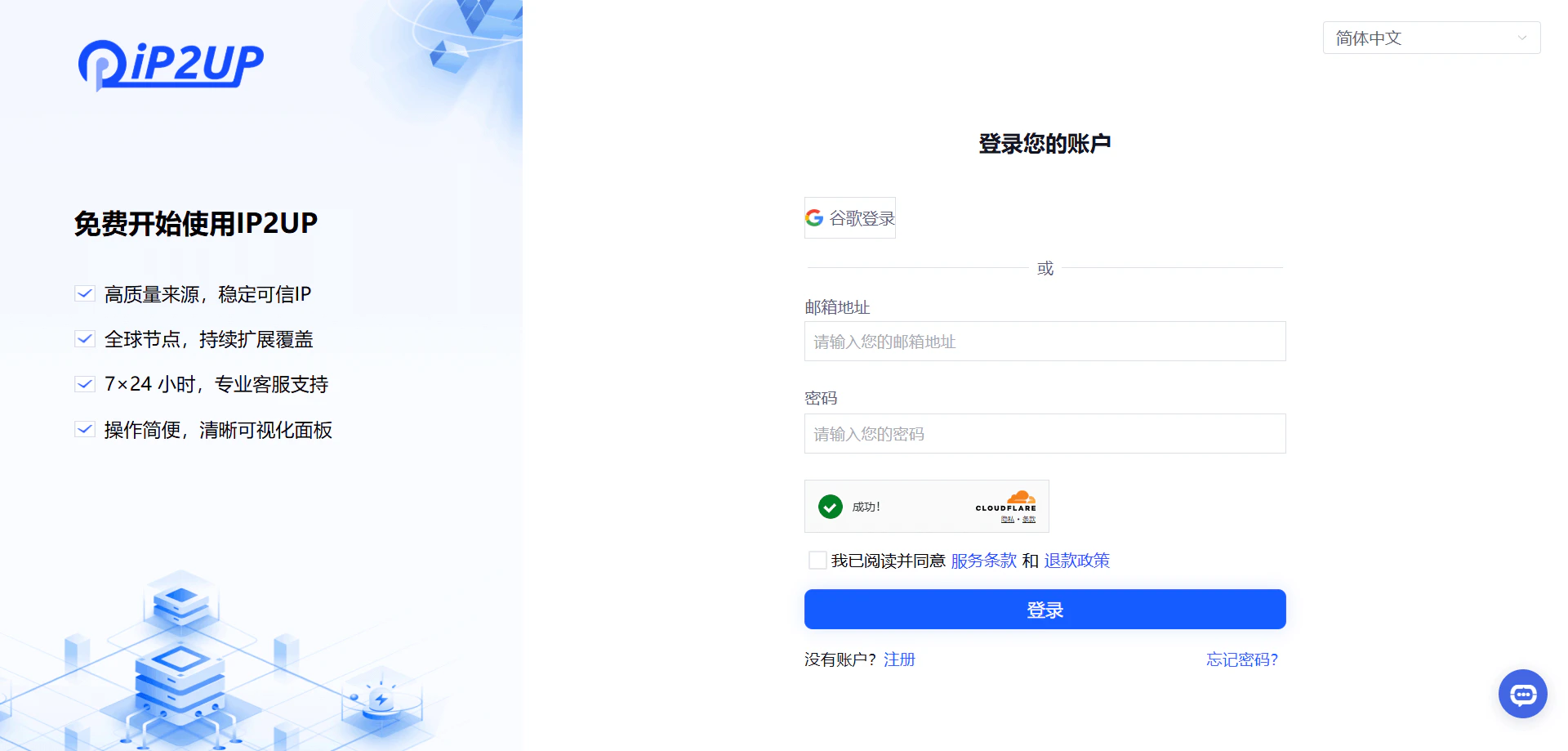
After registration is complete, return to the browser and open [Ip2up.com](https://www.ip2up.com/) to log in. The system supports login via email or Google account.
### Login Account
After registration is complete, return to the browser and open [Ip2up.com](https://www.ip2up.com/) to log in. The system supports login via email or Google account.
 ### View Account Status
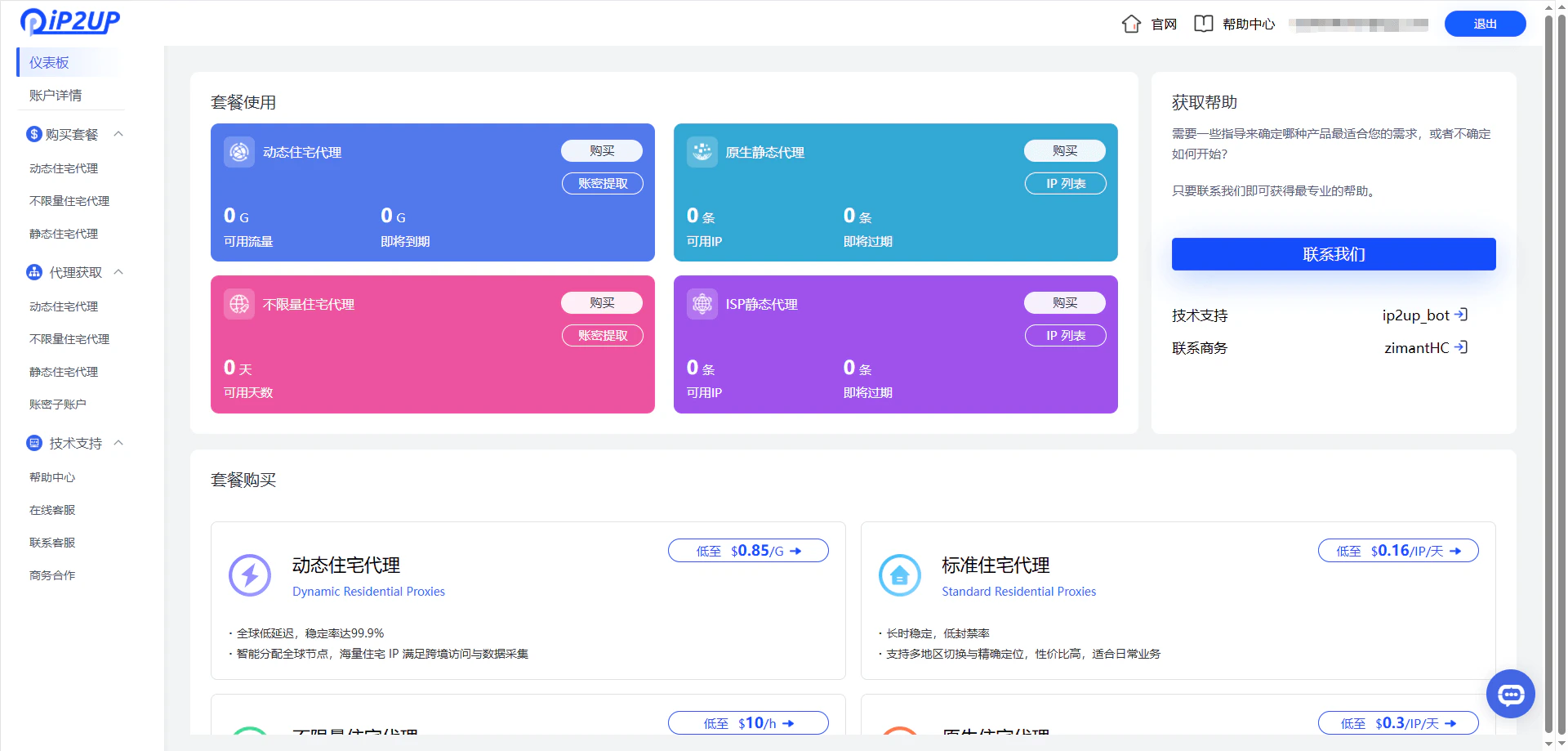
After logging into the system, you can view package purchase information in the personal center. Newly registered accounts have no usable IP resources by default.
### View Account Status
After logging into the system, you can view package purchase information in the personal center. Newly registered accounts have no usable IP resources by default.
 ✅ **At this point, the basic process of registration and login on the Ip2up platform has been completed.**