> ## Documentation Index
> Fetch the complete documentation index at: https://help.ip2up.com/llms.txt
> Use this file to discover all available pages before exploring further.
# Proxy Usage
All proxy products of the platform need to be used in an overseas network environment, which requires customers to configure themselves.
This article explains how to purchase Unlimited Residential Proxy IPs on the **Ip2up platform** and how to obtain and use the proxy information.
### Log In and View Account Status
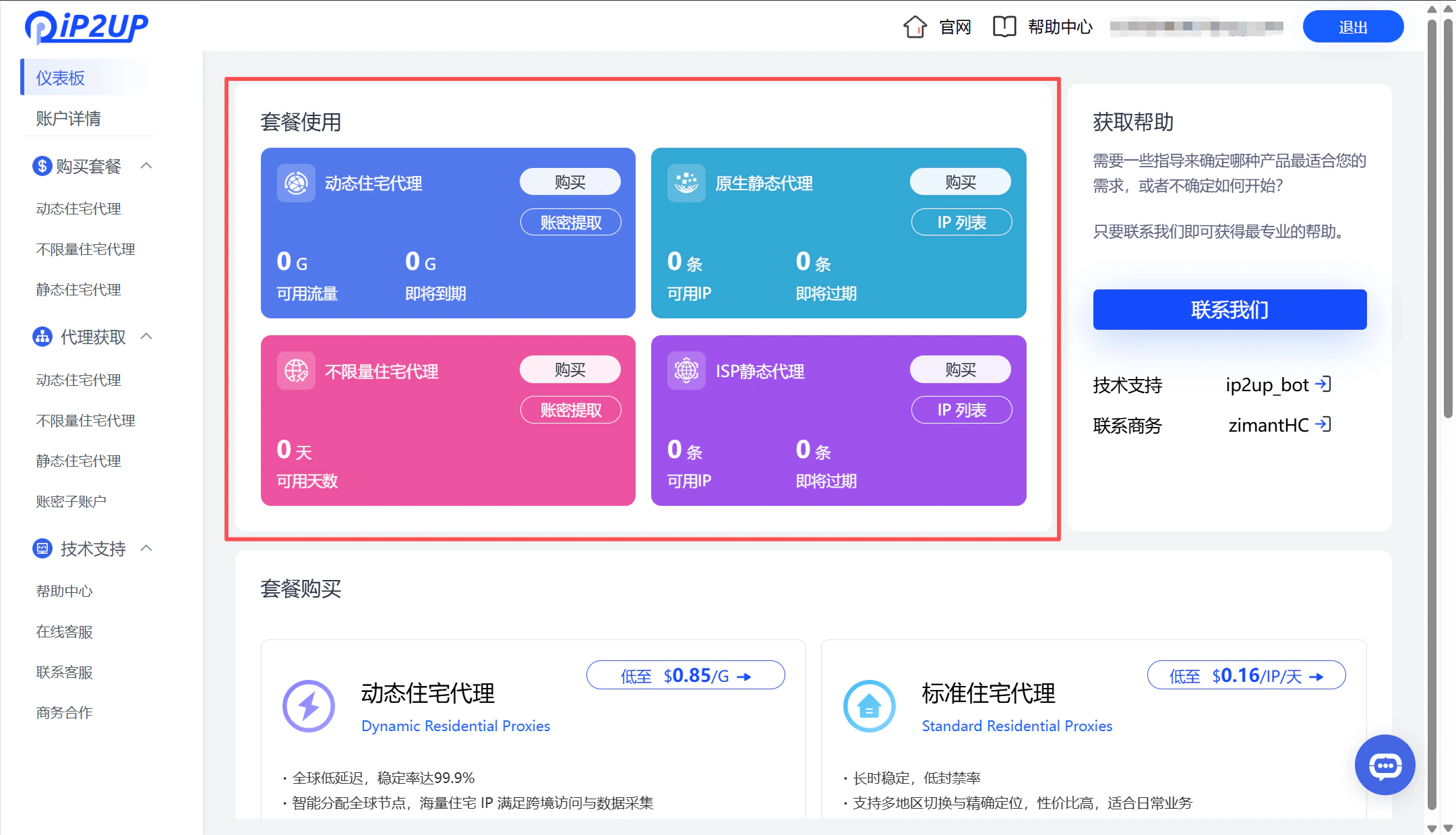
Visit the **[Ip2up Official Website](https://www.Ip2up.com/zh-cn/)** and log in to your account. The system will automatically redirect you to the dashboard interface, where you can view your purchased proxy packages and overall account status.
 ### Select and Purchase a Proxy Package
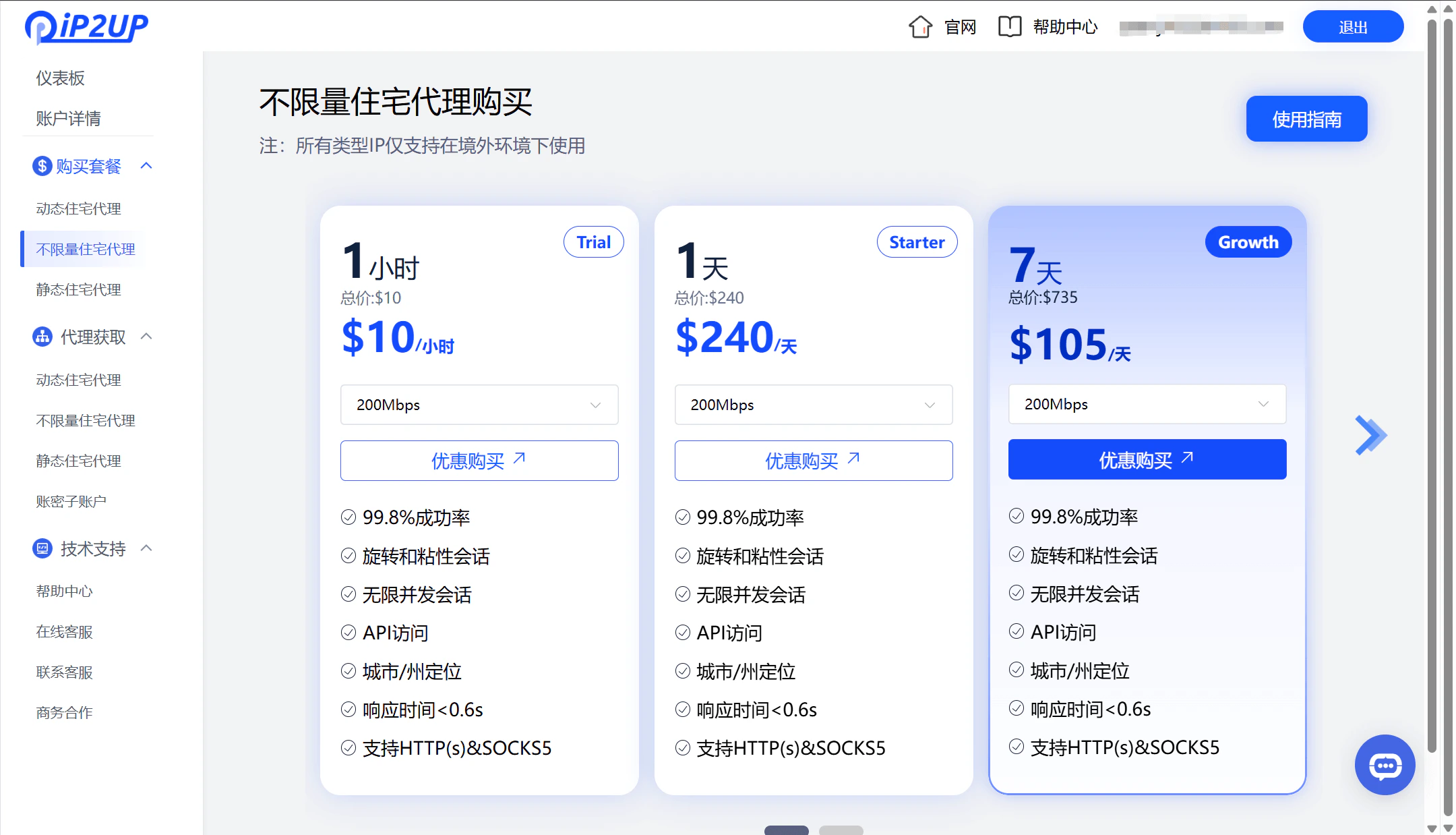
1. Click **Purchase Package** → **Unlimited Residential Proxy** in the left-side menu
2. Select the appropriate package configuration according to your needs
3. Click **Pay** to complete the purchase
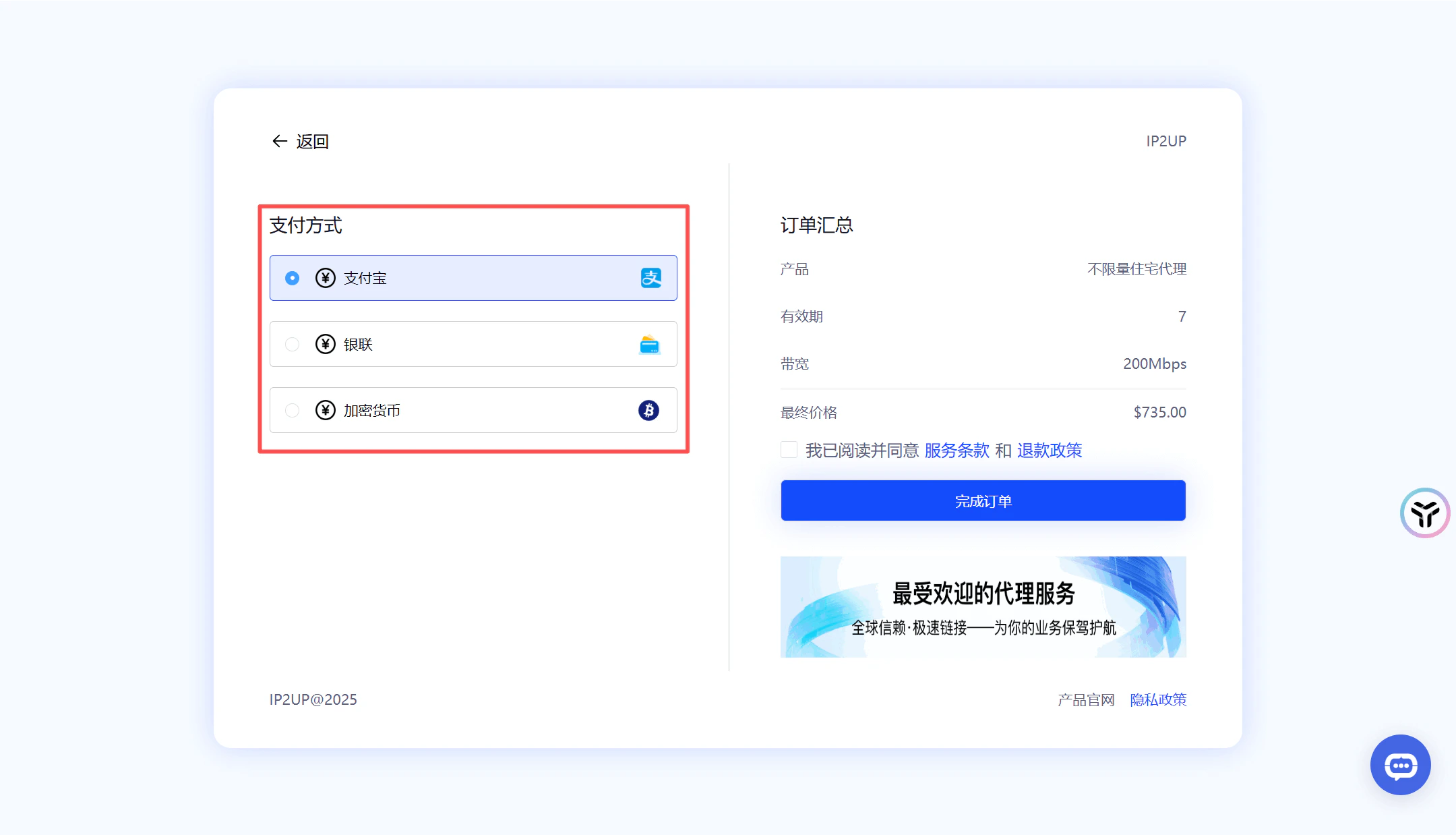
4. Supported payment methods:
* Alipay
* Cryptocurrency payment
* UnionPay
* For other payment methods, please contact customer service
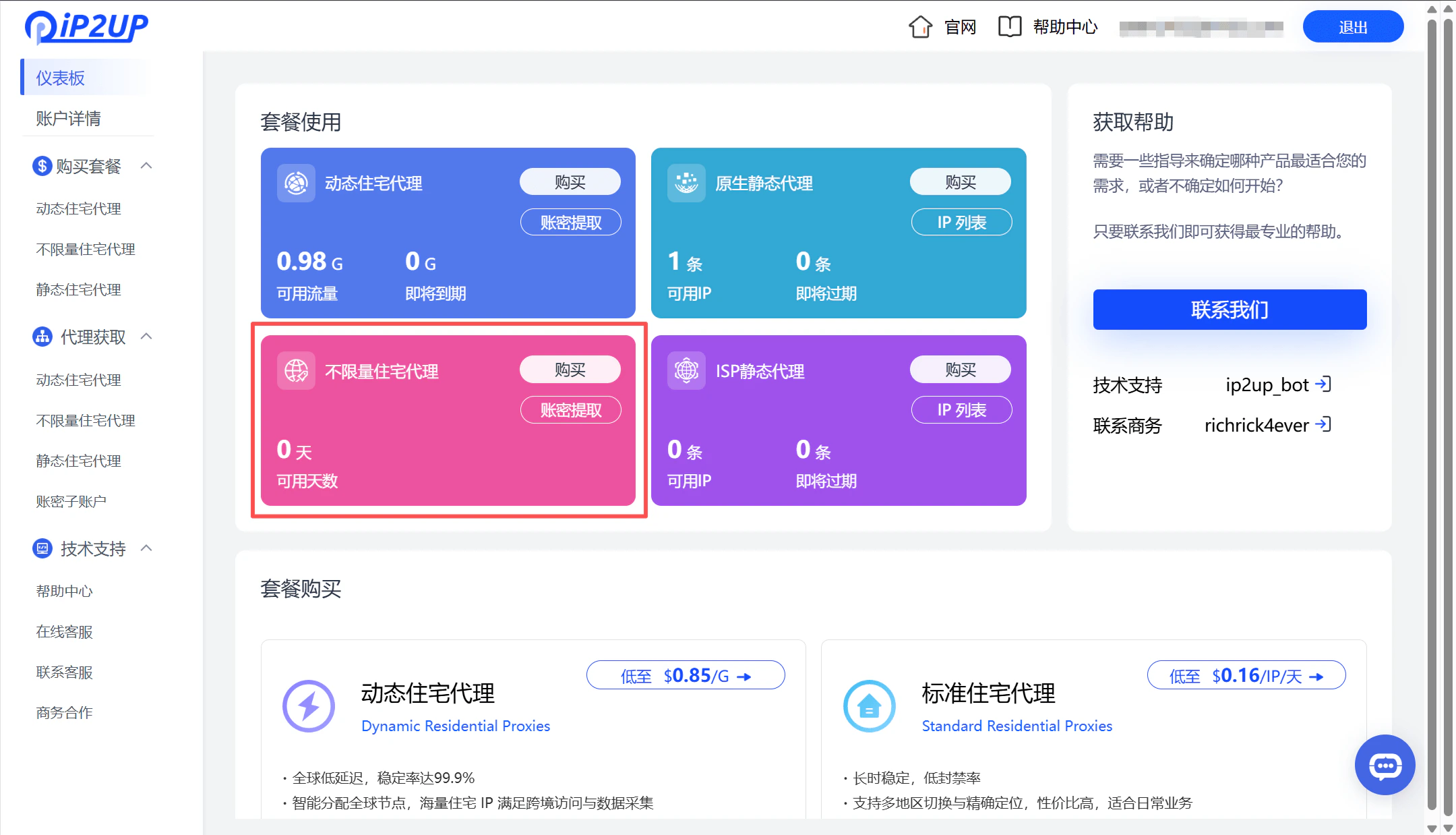
5. After payment is completed, return to the dashboard page to view your current purchase information and available resource status.
### Select and Purchase a Proxy Package
1. Click **Purchase Package** → **Unlimited Residential Proxy** in the left-side menu
2. Select the appropriate package configuration according to your needs
3. Click **Pay** to complete the purchase
4. Supported payment methods:
* Alipay
* Cryptocurrency payment
* UnionPay
* For other payment methods, please contact customer service
5. After payment is completed, return to the dashboard page to view your current purchase information and available resource status.
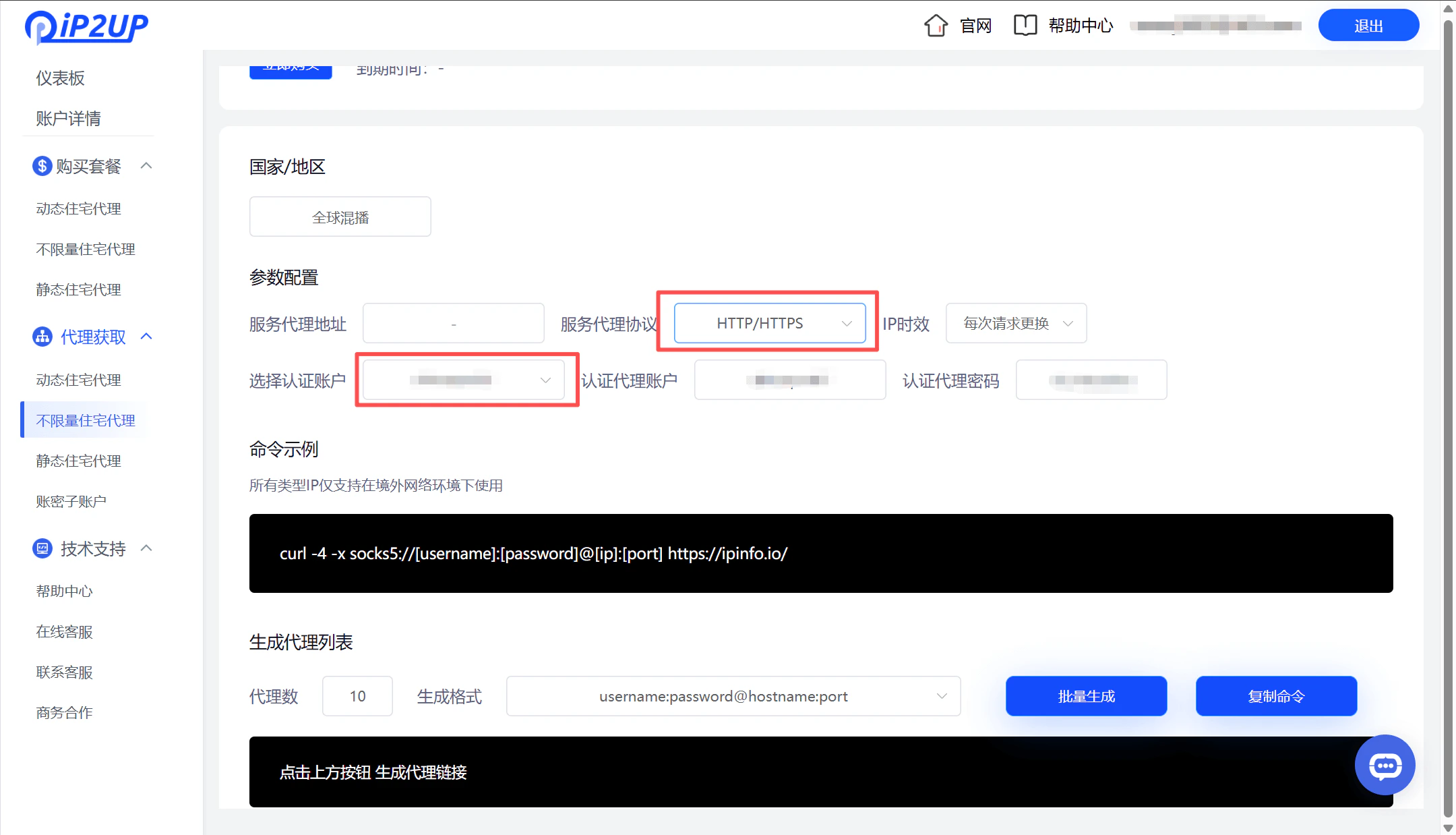
 ### Obtain and Configure Proxy Information
1. Proxy Acquisition Rules\
When obtaining Unlimited Residential Proxy IPs, **country/region selection is not available**. The system will automatically assign available IP resources.
2. Proxy Information Composition\
The generated proxy information contains the following four parts:
* **Proxy Account**
* **Password**
* **Server Address**
* **Port Number**
3. Proxy Format Example
```
username:password@proxy.ip2up.com:port
```
5. Usage Instructions
* When generating proxy information, you can choose the proxy protocol according to the requirements of your proxy software
* Supports account-and-password sub-account authentication for proxy connections
* Sub-accounts are used only for proxy connection authentication and cannot be used to log in to the main platform
### Obtain and Configure Proxy Information
1. Proxy Acquisition Rules\
When obtaining Unlimited Residential Proxy IPs, **country/region selection is not available**. The system will automatically assign available IP resources.
2. Proxy Information Composition\
The generated proxy information contains the following four parts:
* **Proxy Account**
* **Password**
* **Server Address**
* **Port Number**
3. Proxy Format Example
```
username:password@proxy.ip2up.com:port
```
5. Usage Instructions
* When generating proxy information, you can choose the proxy protocol according to the requirements of your proxy software
* Supports account-and-password sub-account authentication for proxy connections
* Sub-accounts are used only for proxy connection authentication and cannot be used to log in to the main platform
 > **Next Step**: For instructions on how to use these proxy IPs in third-party tools (such as fingerprint browsers), please refer to: [Third-party Integration Tutorial](/zh-hans/help/fingerprint-integration)。