> ## Documentation Index
> Fetch the complete documentation index at: https://help.ip2up.com/llms.txt
> Use this file to discover all available pages before exploring further.

# VMLogin集成使用教程

<Tip>平台的所有代理产品均需要在海外网络环境下使用，海外网络环境需要客户自行配置。</Tip>

本教程将介绍如何在 **VMLogin防关联浏览器** 中配置 **[Ip2up](https://www.Ip2up.com/zh-cn/)** 代理IP，实现安全、隔离的多账号操作环境。

<Info>动态住宅IP的使用方式和静态住宅IP的使用方式一样</Info>

### 步骤一：下载并安装VMLogin客户端

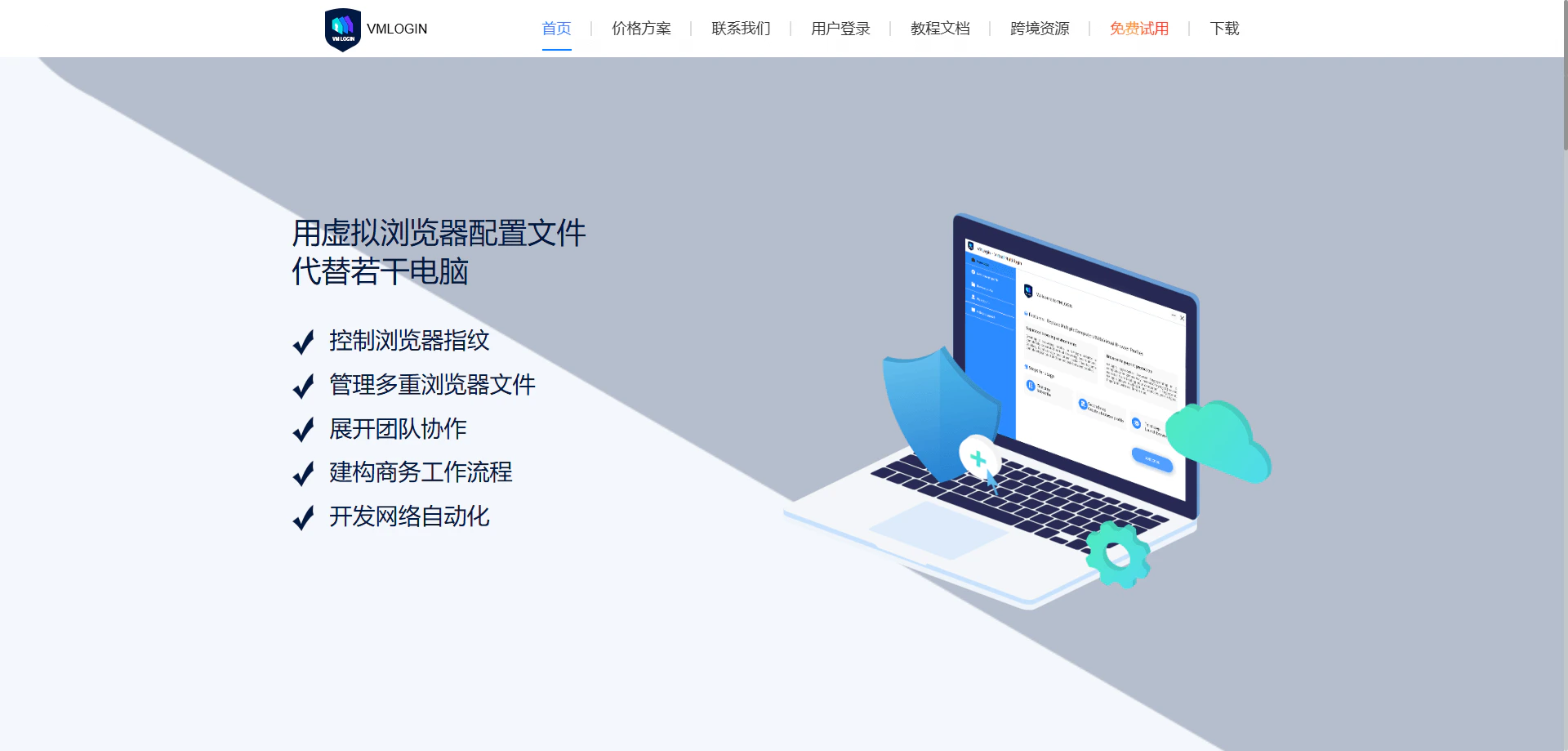
访问 **VMLogin官网** ，注册账号并下载客户端，完成安装后启动软件。

<img src="https://mintcdn.com/acme-2c62d9fa/-I0epiSaeyhL94EG/res/images/VML10-image.png?fit=max&auto=format&n=-I0epiSaeyhL94EG&q=85&s=fb2c7bc826414e5429c8ae543d403ab8" alt="VMLogin官网下载页面" width="1920" height="919" data-path="res/images/VML10-image.png" />

### 步骤二：创建新的浏览器配置文件

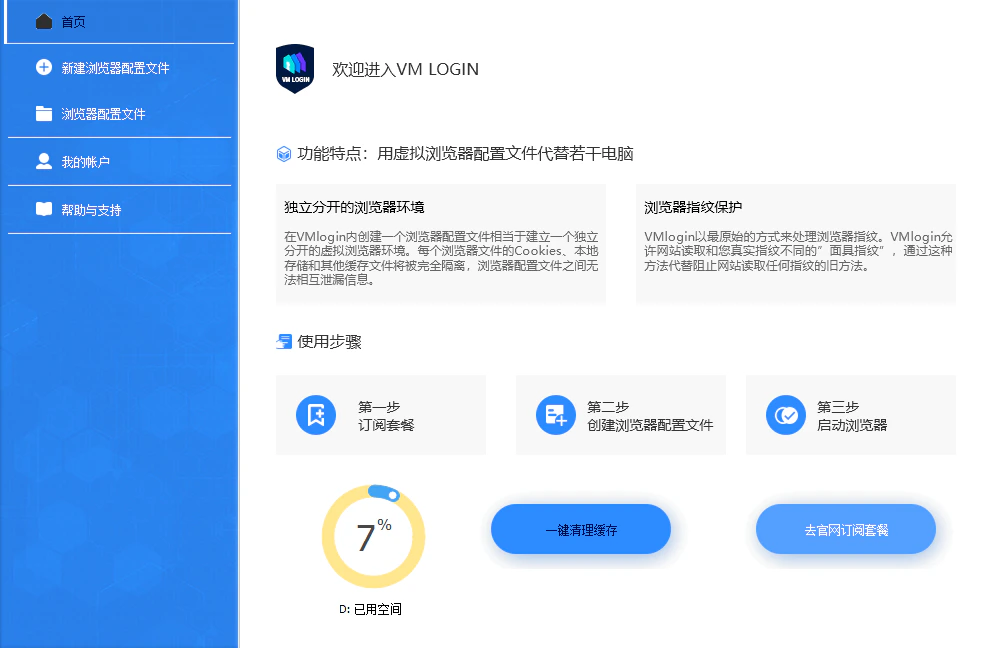
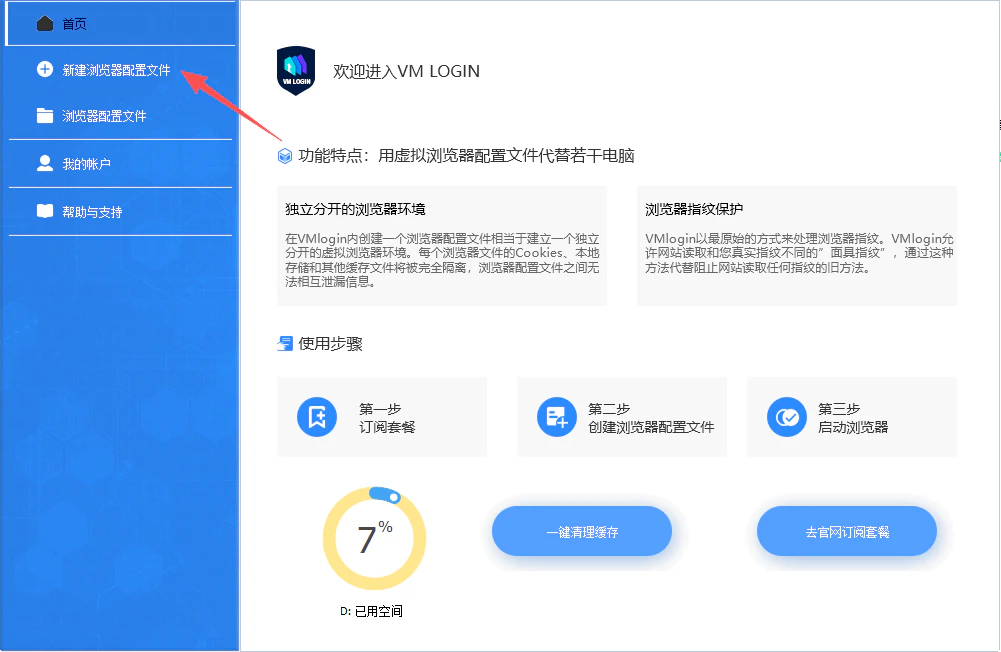
打开VMLogin客户端后，点击主界面下方的 **“新建浏览器配置文件”** 按钮，进入配置页面。

<img src="https://mintcdn.com/acme-2c62d9fa/-I0epiSaeyhL94EG/res/images/VML1-image.png?fit=max&auto=format&n=-I0epiSaeyhL94EG&q=85&s=8e649833c123ecbe1f791e86b79226d7" alt="VMLogin主界面与新建配置文件按钮" width="997" height="648" data-path="res/images/VML1-image.png" />

<img src="https://mintcdn.com/acme-2c62d9fa/-I0epiSaeyhL94EG/res/images/VML2-image.png?fit=max&auto=format&n=-I0epiSaeyhL94EG&q=85&s=0a8179246eec62ab97dd9c5a73feeb81" alt="新建配置文件界面" width="1001" height="652" data-path="res/images/VML2-image.png" />

### 步骤三：配置浏览器基本信息

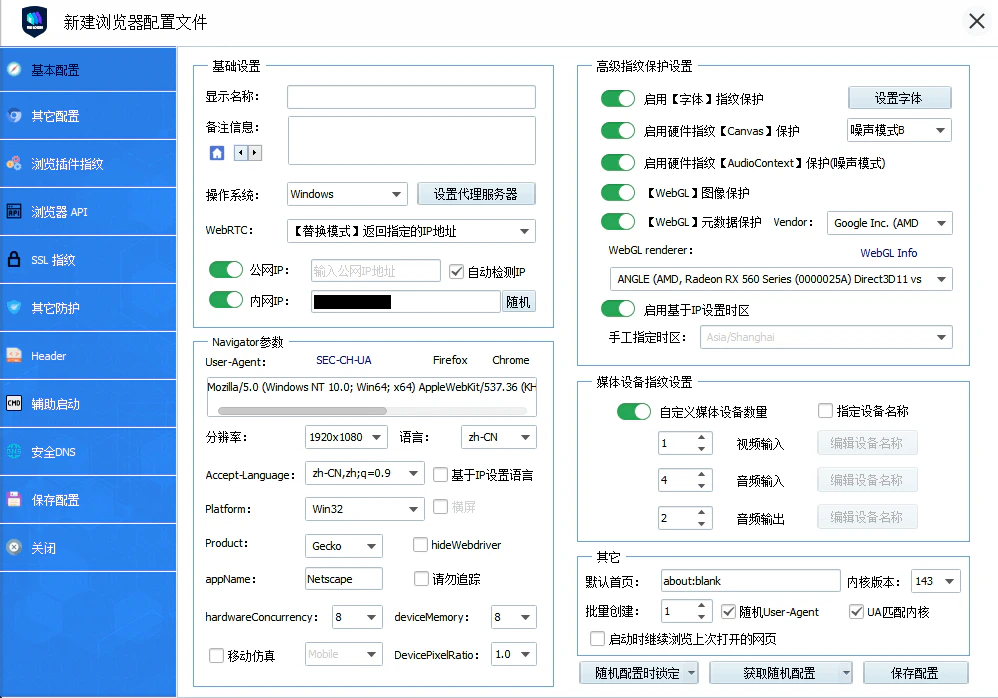
在弹出的配置窗口中，填写浏览器配置文件的基本信息，如名称、备注、分组等。

<img src="https://mintcdn.com/acme-2c62d9fa/-I0epiSaeyhL94EG/res/images/VML3-image.png?fit=max&auto=format&n=-I0epiSaeyhL94EG&q=85&s=da3d3f93fe04076c927ff90dccf30d7b" alt="新建浏览器配置窗口" width="998" height="698" data-path="res/images/VML3-image.png" />

### 步骤四：启用代理并选择代理类型

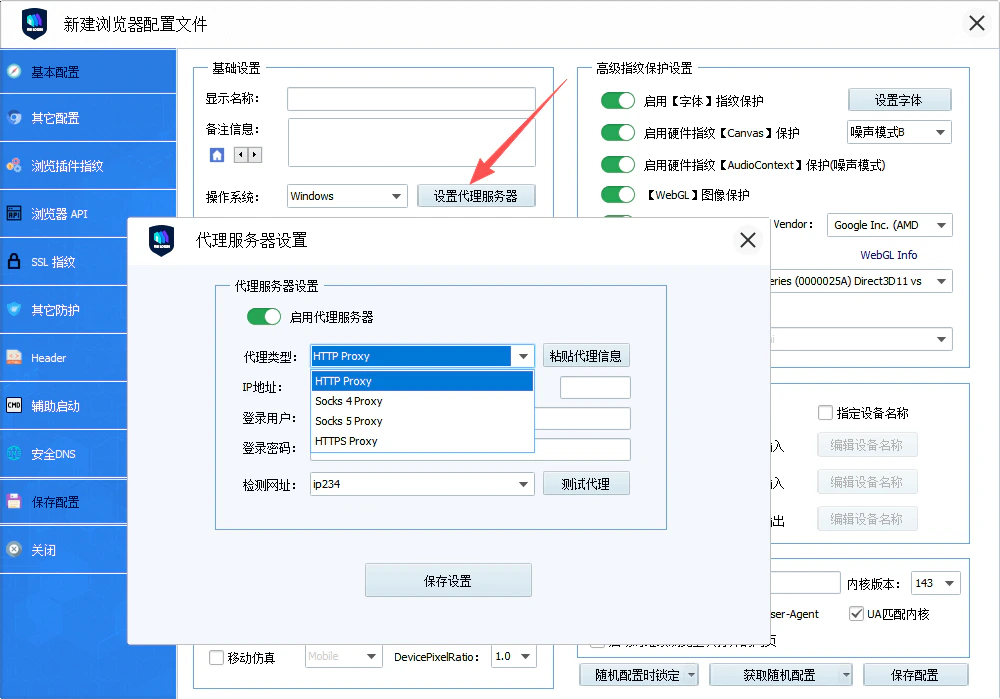
在配置页面中，找到 **“代理服务器”** 部分，勾选 **“启用代理服务器”**，然后选择合适的代理协议。

**请注意：** Ip2up 目前支持 **HTTP** 和 **SOCKS5** 两种代理协议，请根据实际需求选择。

<img src="https://mintcdn.com/acme-2c62d9fa/-I0epiSaeyhL94EG/res/images/VML4-image.png?fit=max&auto=format&n=-I0epiSaeyhL94EG&q=85&s=2e003a3de0b1d5935955b17ec151f4ce" alt="启用代理服务器并选择协议类型" width="1000" height="699" data-path="res/images/VML4-image.png" />

### 步骤五：获取Ip2up代理信息

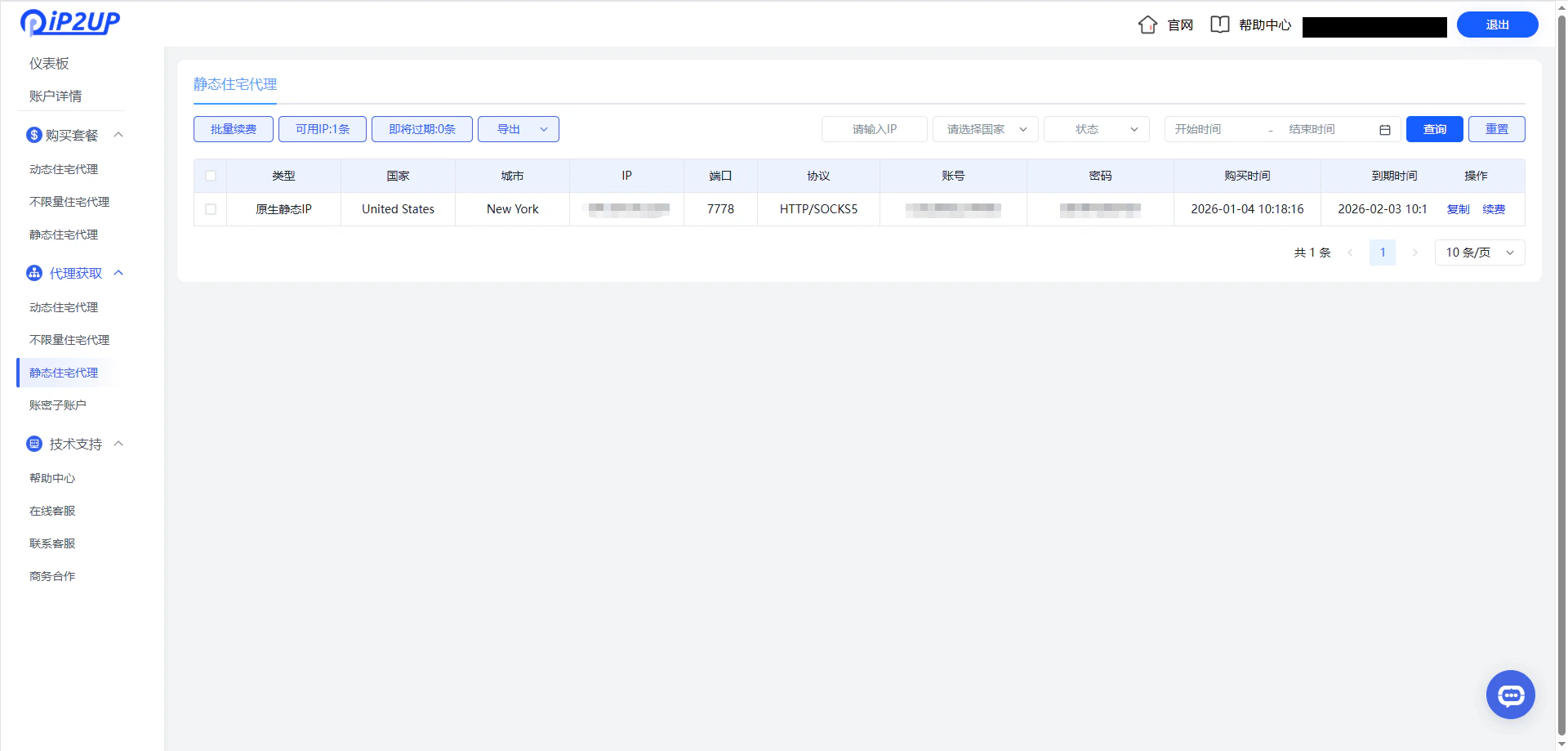
登录 [Ip2up代理平台](https://www.Ip2up.com/zh-cn/)，进入 **静态住宅代理** 页面，查看并复制您的代理信息（服务器地址、端口、账号、密码）。

<img src="https://mintcdn.com/acme-2c62d9fa/-I0epiSaeyhL94EG/res/images/VML5-image.png?fit=max&auto=format&n=-I0epiSaeyhL94EG&q=85&s=9b369b490aabe201e13d70d613bd55b7" alt="Ip2up代理信息提取页面" width="1920" height="919" data-path="res/images/VML5-image.png" />

### 步骤六：填写代理信息

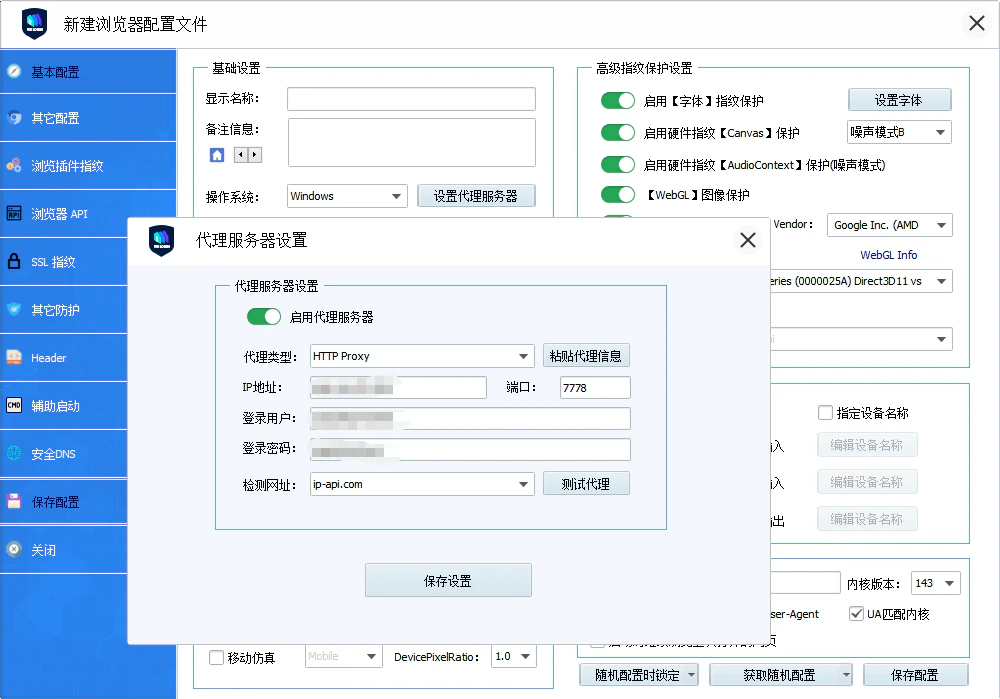
将复制的代理信息填入VMLogin代理设置对应的输入框中。

<img src="https://mintcdn.com/acme-2c62d9fa/-I0epiSaeyhL94EG/res/images/VML6-image.png?fit=max&auto=format&n=-I0epiSaeyhL94EG&q=85&s=857d79433b233329dc498ee78edee01a" alt="VMLogin代理信息填写示例" width="1000" height="699" data-path="res/images/VML6-image.png" />

### 步骤七：测试代理连通性

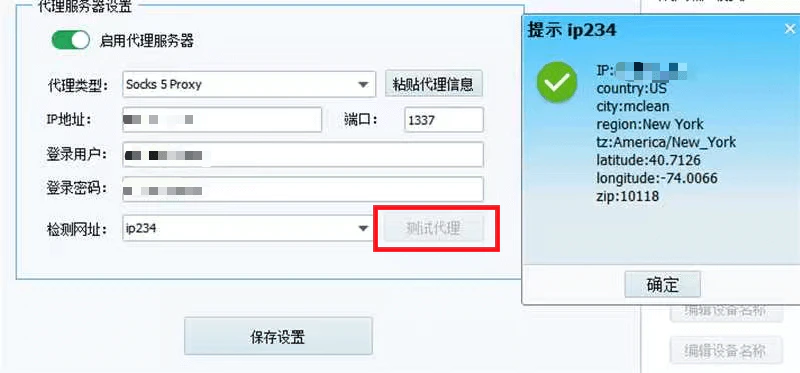
填写完毕后，点击 **“测试代理”** 按钮，系统将自动检测代理IP的连通性。若显示 **“代理测试成功”**，则表示配置无误。

<img src="https://mintcdn.com/acme-2c62d9fa/-I0epiSaeyhL94EG/res/images/VML7-image.png?fit=max&auto=format&n=-I0epiSaeyhL94EG&q=85&s=9f64a91b814fc0130457c9ba8405d87a" alt="代理测试成功提示" width="800" height="373" data-path="res/images/VML7-image.png" />

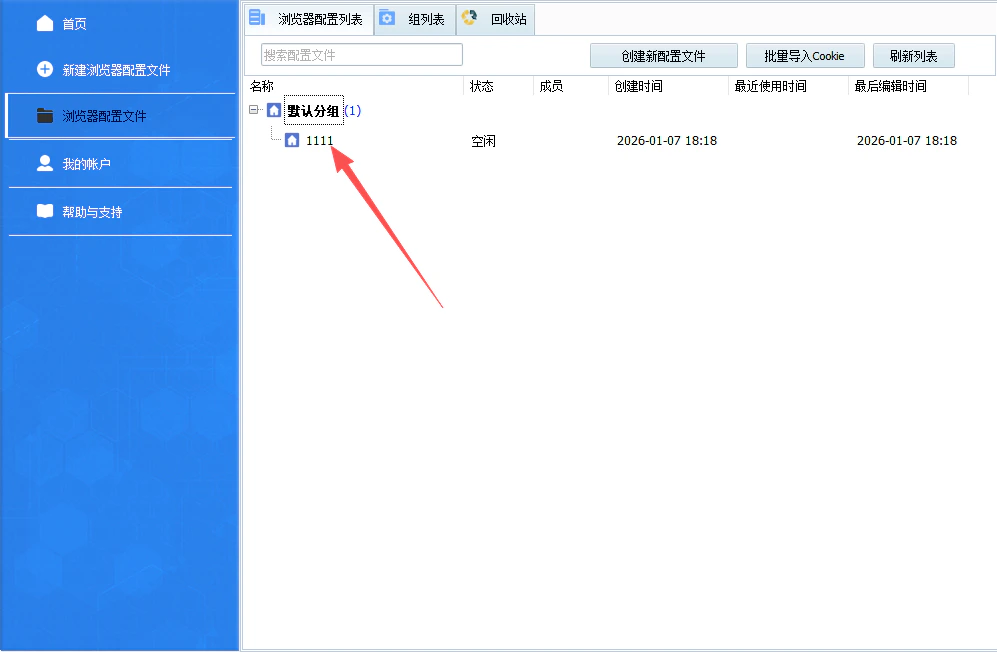
### 步骤八：启动浏览器环境

返回配置文件列表，找到刚刚创建的配置文件，双击该条目或点击 **“启动”** 按钮，打开浏览器。

<img src="https://mintcdn.com/acme-2c62d9fa/-I0epiSaeyhL94EG/res/images/VML8-image.png?fit=max&auto=format&n=-I0epiSaeyhL94EG&q=85&s=dba98d4702f5faa17c9548bdedbee8e1" alt="启动已配置的浏览器环境" width="997" height="652" data-path="res/images/VML8-image.png" />

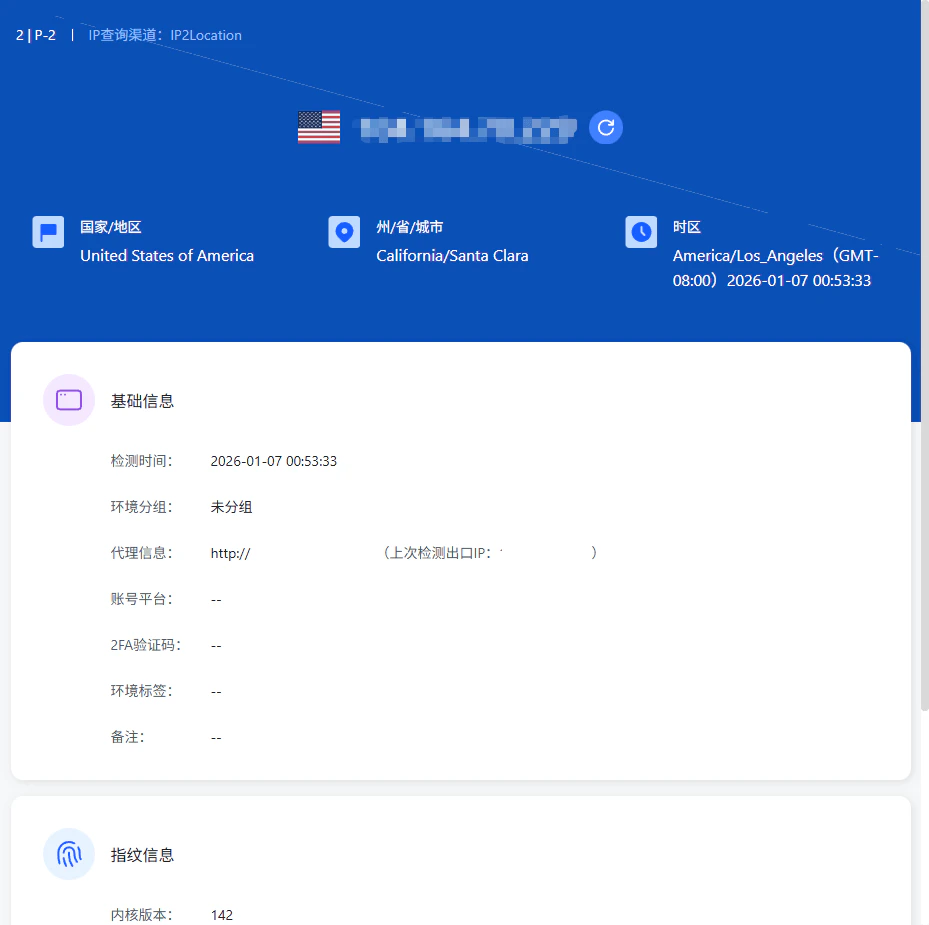
### 步骤九：验证代理IP

在打开的浏览器中访问IP检测网站，确认显示的IP地址与Ip2up提供的代理IP一致。

<img src="https://mintcdn.com/acme-2c62d9fa/-I0epiSaeyhL94EG/res/images/VML9-image.png?fit=max&auto=format&n=-I0epiSaeyhL94EG&q=85&s=479a98d03d4dbae62fa4c77e683ea4fb" alt="代理IP验证页面" width="929" height="925" data-path="res/images/VML9-image.png" />

✅ **至此，已成功在VMLogin防关联浏览器中配置了Ip2up代理IP，可开始进行安全、隔离的多账号操作。**