> ## Documentation Index
> Fetch the complete documentation index at: https://help.ip2up.com/llms.txt
> Use this file to discover all available pages before exploring further.

# 紫鸟浏览器集成使用教程

<Tip>平台的所有代理产品均需要在海外网络环境下使用，海外网络环境需要客户自行配置。</Tip>

本教程将介绍如何在 **紫鸟指纹浏览器** 中配置 **[Ip2up](https://www.Ip2up.com/zh-cn/)** 代理IP，实现安全、隔离的多账号操作环境。

<Info>动态住宅IP的使用方式和静态住宅IP的使用方式一样</Info>

### 步骤一：下载并安装紫鸟指纹浏览器

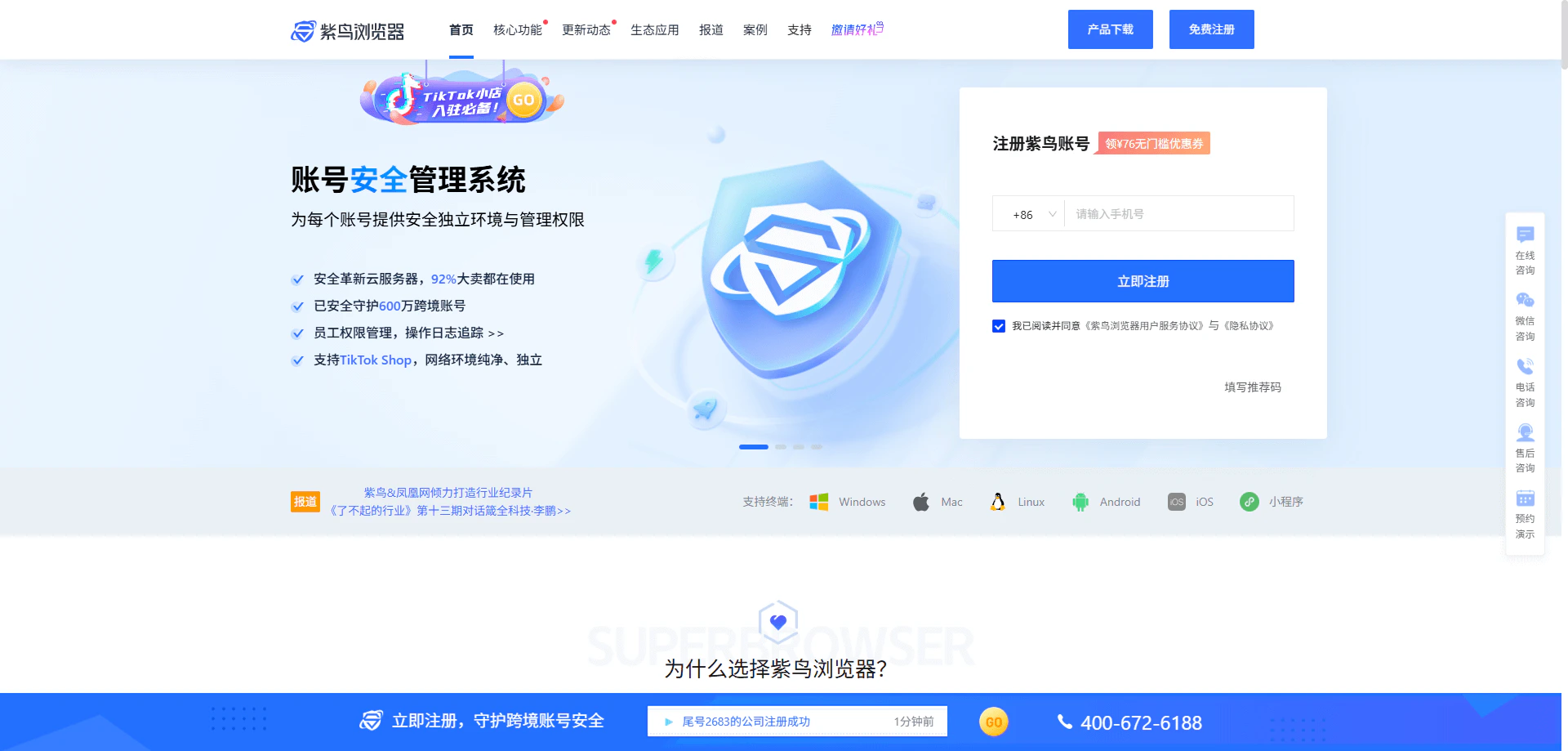
访问 **紫鸟指纹浏览器官网** ，注册账号并下载客户端，完成安装后启动软件。

<img src="https://mintcdn.com/acme-2c62d9fa/n1p5_UTMKVe_S6VC/res/images/Zi11-image.png?fit=max&auto=format&n=n1p5_UTMKVe_S6VC&q=85&s=2565921c7950c62d29d8872b9345702a" alt="紫鸟指纹浏览器官网下载页面" width="1920" height="919" data-path="res/images/Zi11-image.png" />

### 步骤二：进入设备管理页面

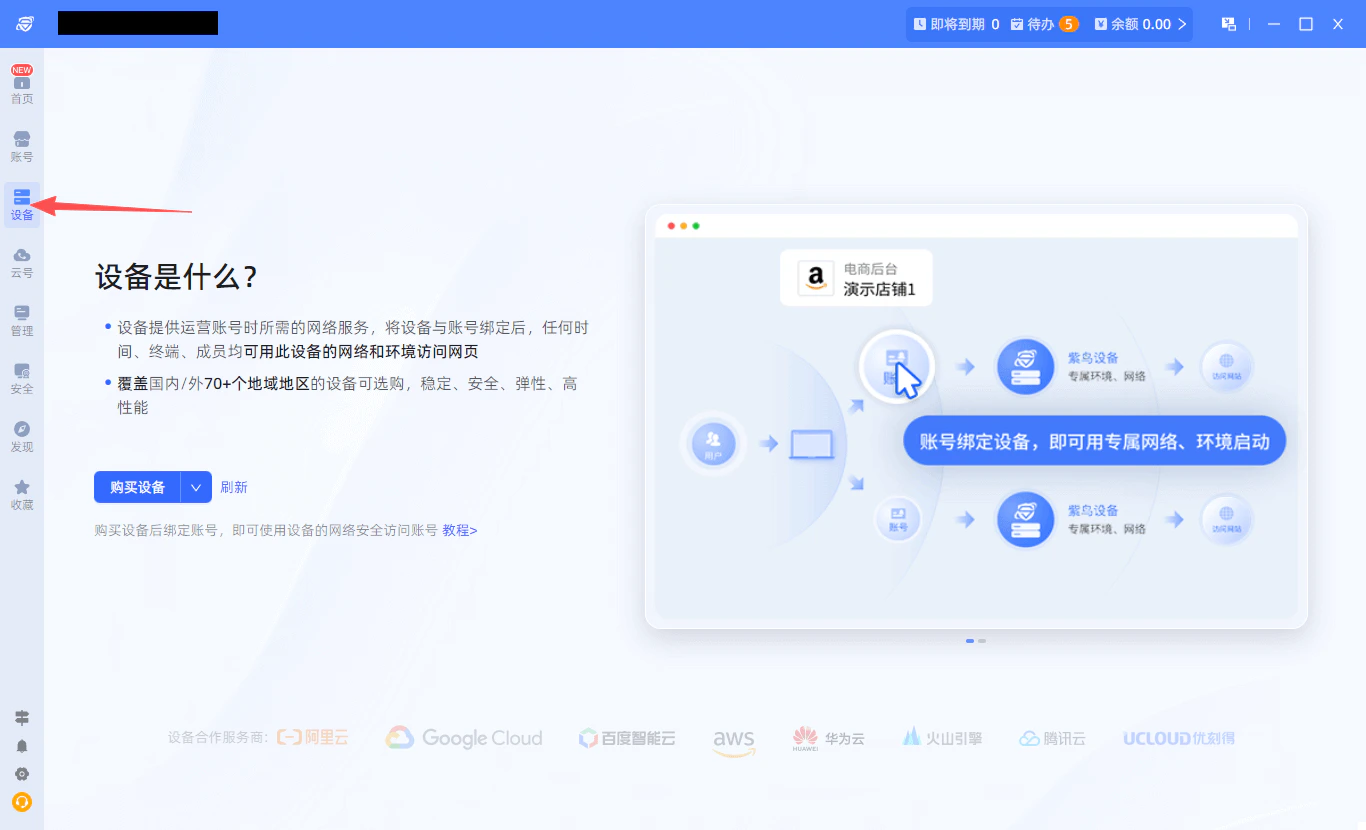
打开客户端后，点击左侧导航栏中的 **设备** 菜单，进入设备管理界面。

<img src="https://mintcdn.com/acme-2c62d9fa/n1p5_UTMKVe_S6VC/res/images/Zi1-image.png?fit=max&auto=format&n=n1p5_UTMKVe_S6VC&q=85&s=17ecddea3b8f42b30331092ae4328c60" alt="紫鸟浏览器设备管理页面" width="1366" height="830" data-path="res/images/Zi1-image.png" />

### 步骤三：添加自有设备

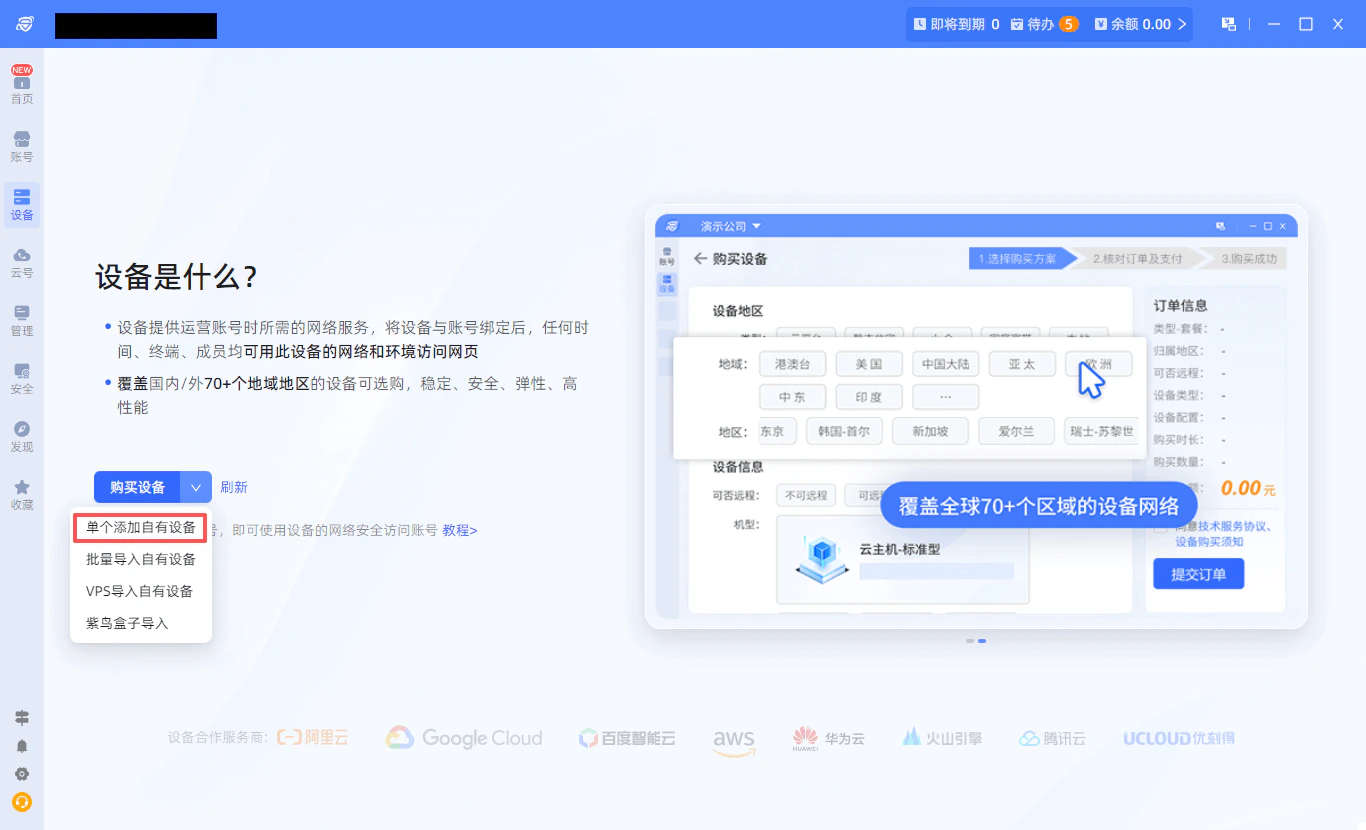
在设备管理界面中，点击 **添加自有设备** 按钮，开始配置新设备。

<img src="https://mintcdn.com/acme-2c62d9fa/n1p5_UTMKVe_S6VC/res/images/Zi2-image.png?fit=max&auto=format&n=n1p5_UTMKVe_S6VC&q=85&s=87b738b9e84b8ff0772fe57cfc71de69" alt="添加自有设备按钮" width="1366" height="830" data-path="res/images/Zi2-image.png" />

### 步骤四：获取Ip2up代理信息

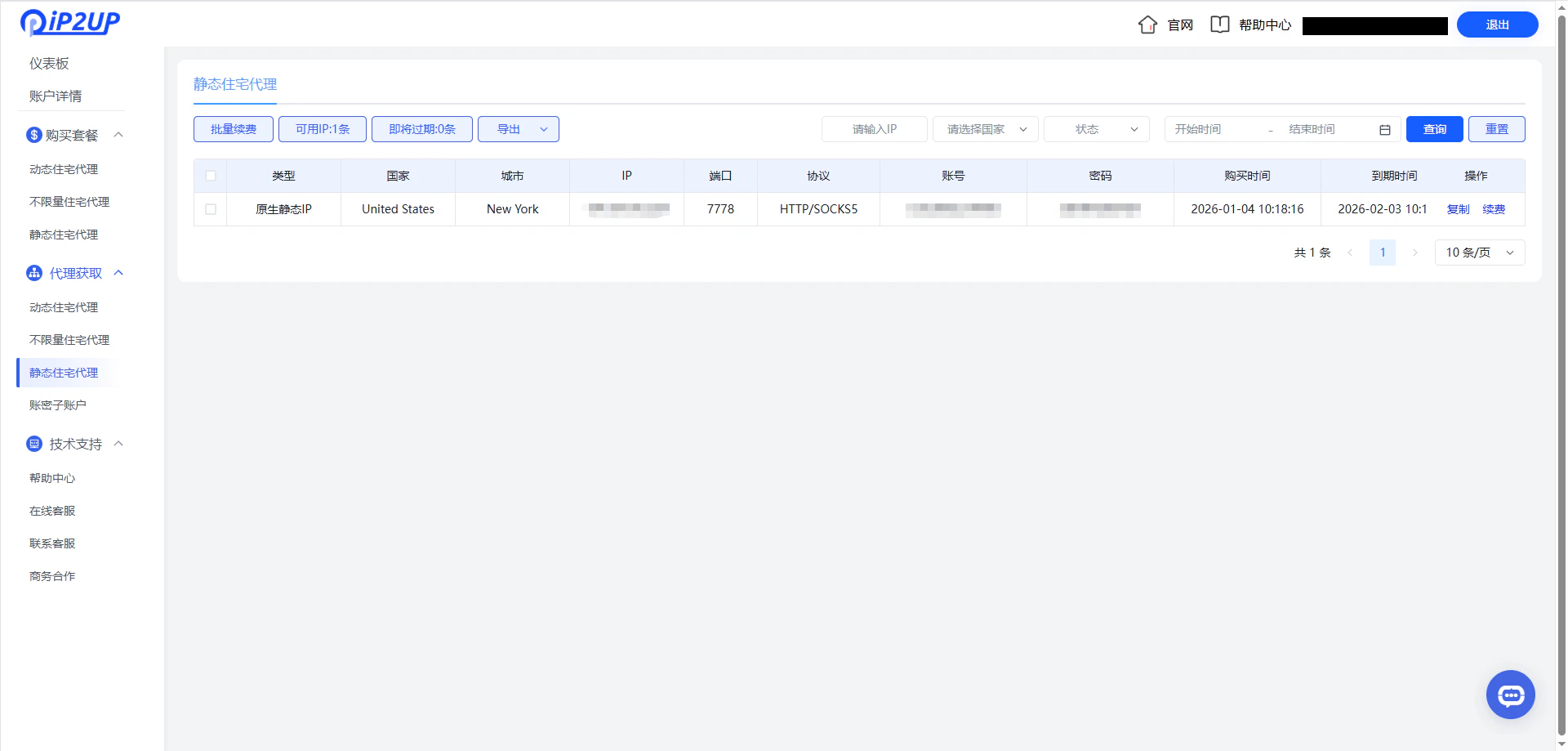
登录 [Ip2up代理平台](https://www.Ip2up.com/zh-cn/)，进入 **静态住宅代理** 页面，查看并复制您的代理信息（服务器地址、端口、账号、密码）。

<img src="https://mintcdn.com/acme-2c62d9fa/n1p5_UTMKVe_S6VC/res/images/Zi3-image.png?fit=max&auto=format&n=n1p5_UTMKVe_S6VC&q=85&s=d495195595bed34361f3444af6d42e96" alt="Ip2up代理信息提取页面" width="1920" height="919" data-path="res/images/Zi3-image.png" />

### 步骤五：配置代理类型与信息

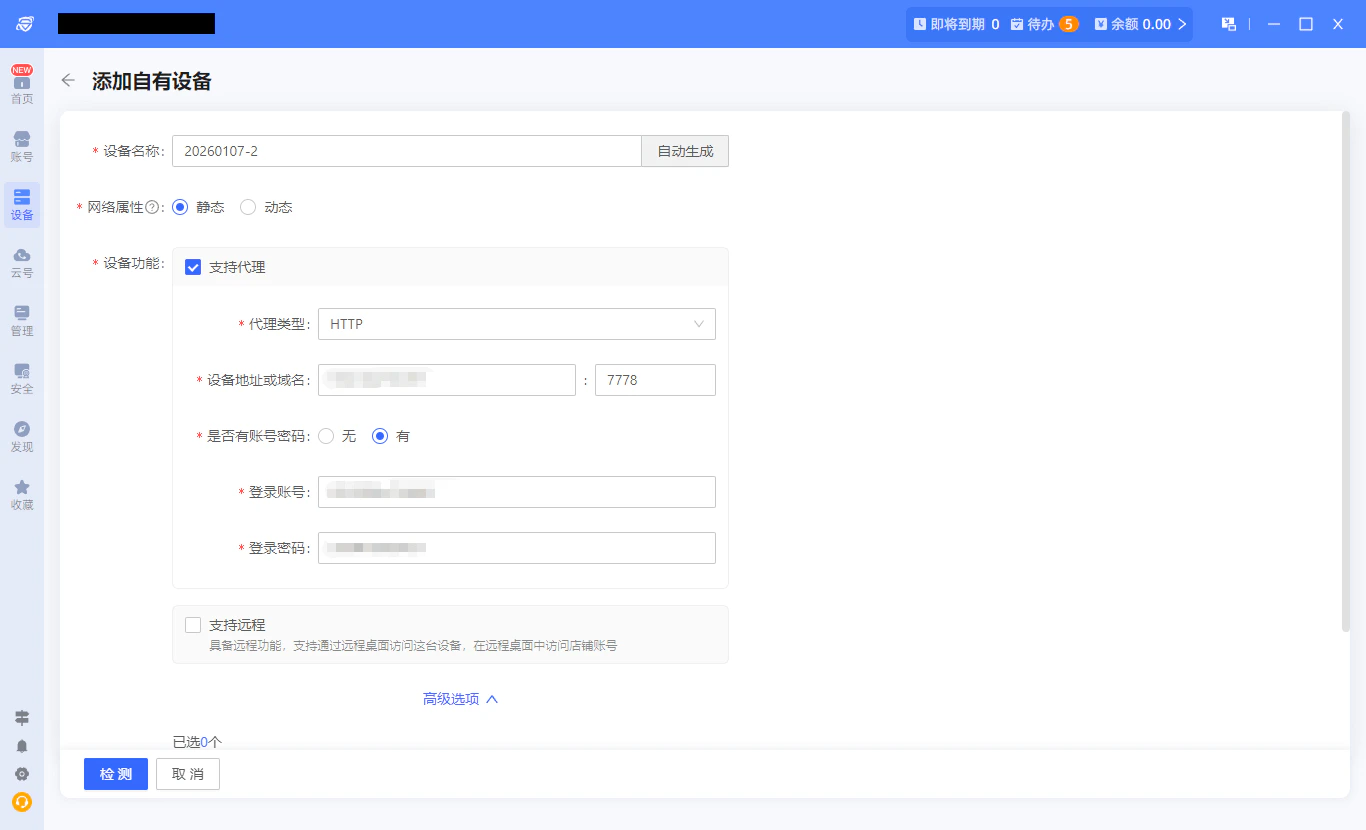
在设备功能配置中，找到 **支持代理** 选项，勾选并选择与Ip2up代理对应的协议类型。

**请注意：** Ip2up 目前支持 **HTTP** 和 **SOCKS5** 两种代理协议，请根据实际需求选择。

<img src="https://mintcdn.com/acme-2c62d9fa/n1p5_UTMKVe_S6VC/res/images/Zi4-image.png?fit=max&auto=format&n=n1p5_UTMKVe_S6VC&q=85&s=21c394786c19166483becaf6a6e46a2d" alt="选择代理协议类型" width="1366" height="830" data-path="res/images/Zi4-image.png" />

### 步骤六：填写代理信息并测试连通性

将获取的代理信息填入对应的输入框，然后点击 **检测** 按钮，测试代理IP的连通性。确认无误后，点击 **确认添加** 完成设备配置。

您可以在 **设备 → 全部设备** 界面查看已配置的代理设备。
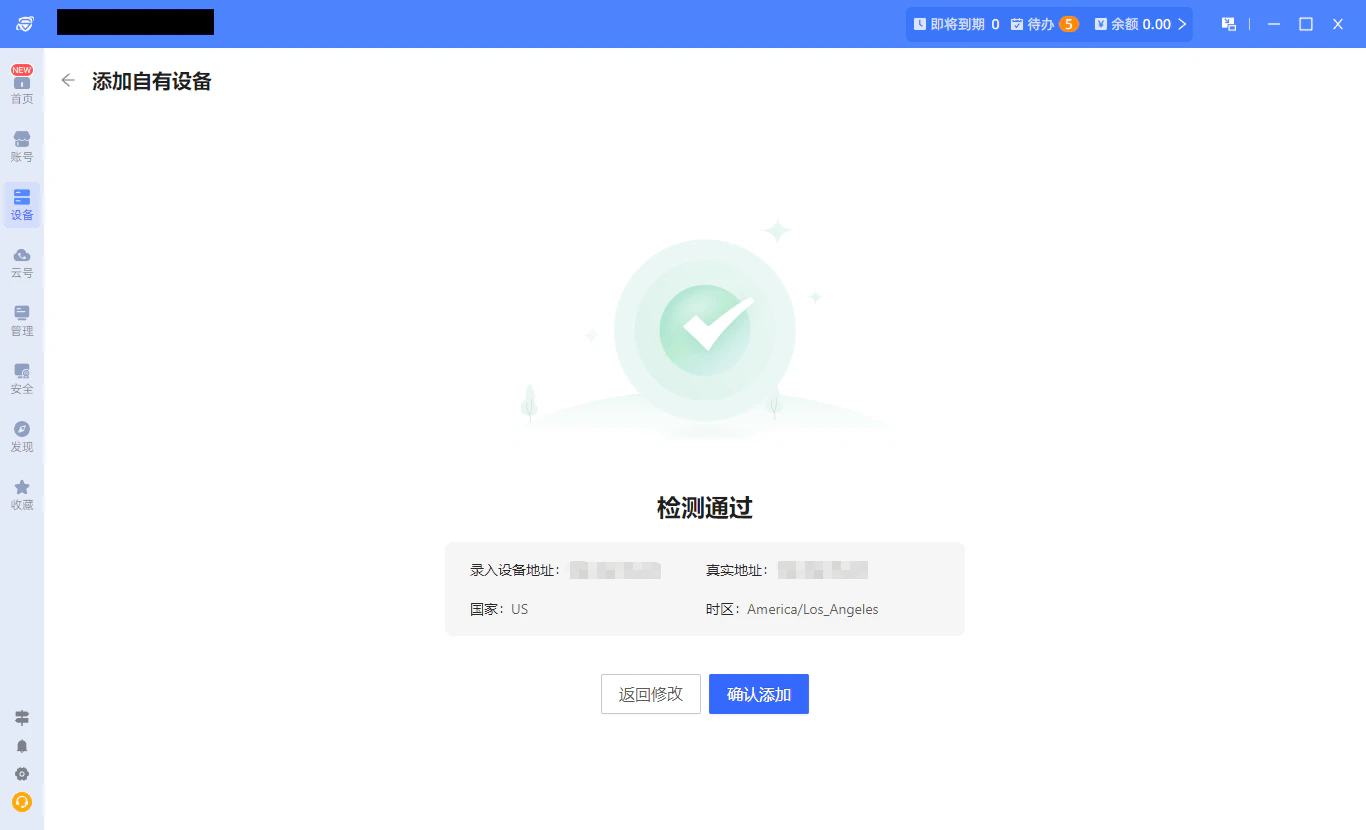
<img src="https://mintcdn.com/acme-2c62d9fa/n1p5_UTMKVe_S6VC/res/images/Zi5-image.png?fit=max&auto=format&n=n1p5_UTMKVe_S6VC&q=85&s=98836579336b4a6fe5a38ebd62e1fae1" alt="填写代理信息并测试连通性" width="1366" height="830" data-path="res/images/Zi5-image.png" />

### 步骤七：创建账号并绑定设备

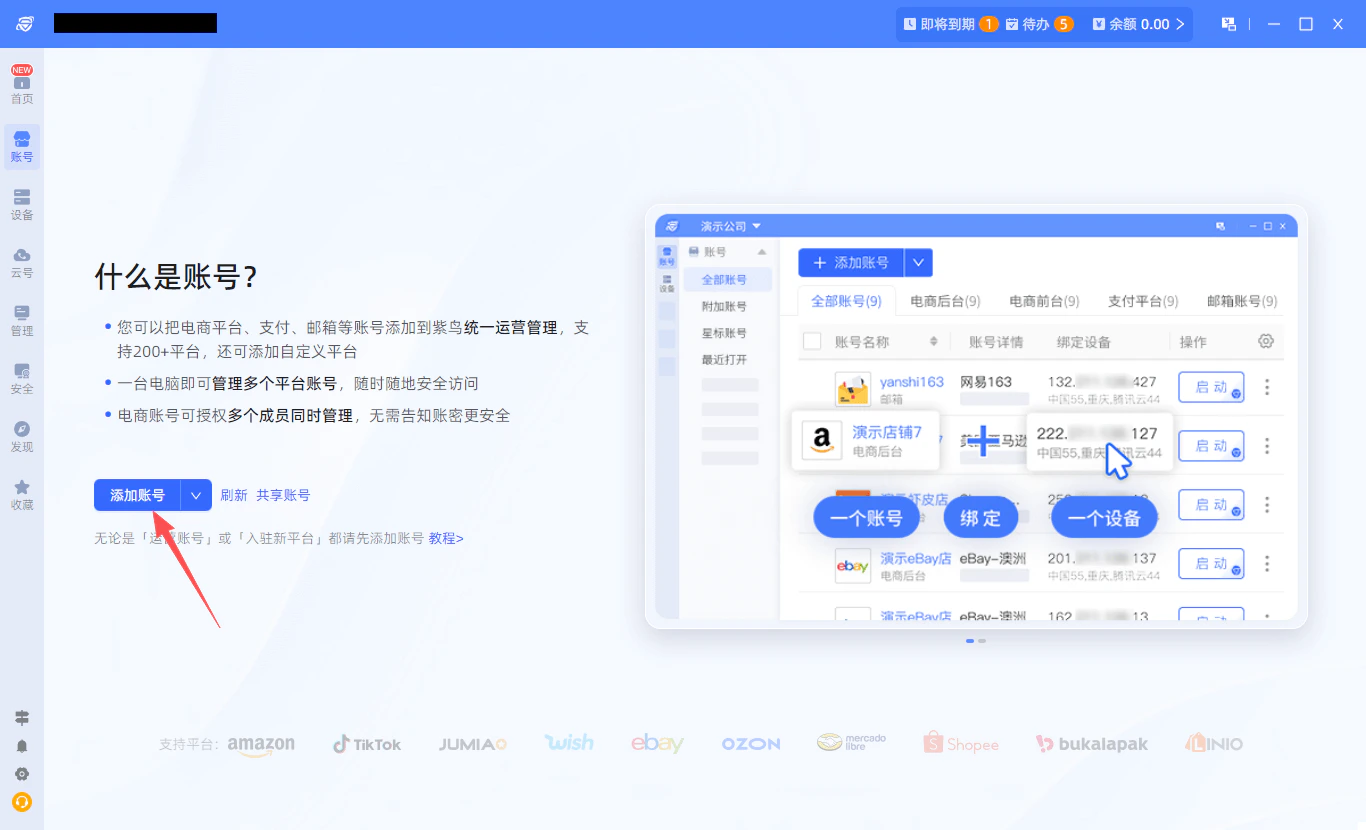
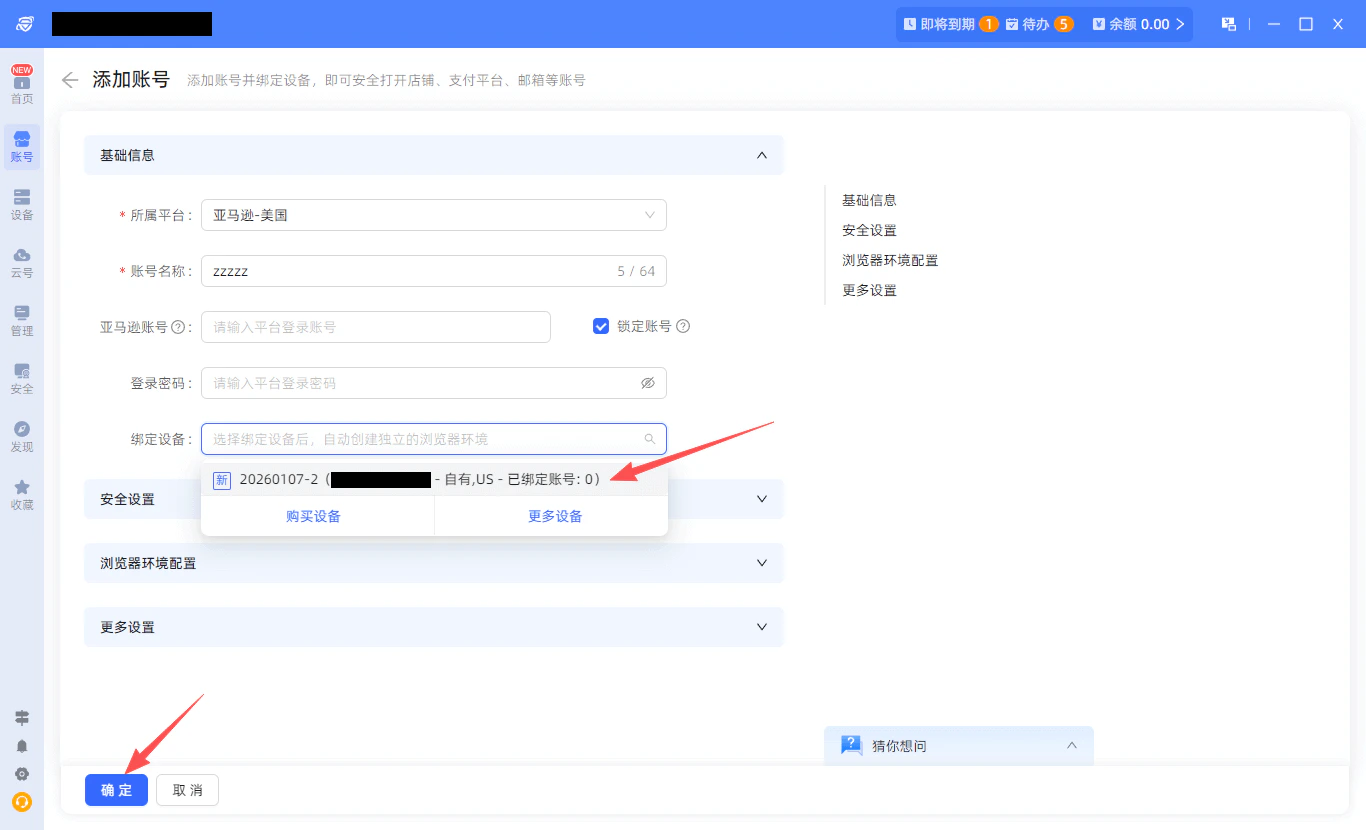
点击左侧导航栏的 **账号**，选择 **添加账号**。在弹出的窗口中：

1. 选择目标平台
2. 自定义账号名称
3. 在 **绑定设备** 中选择刚刚创建的自有设备
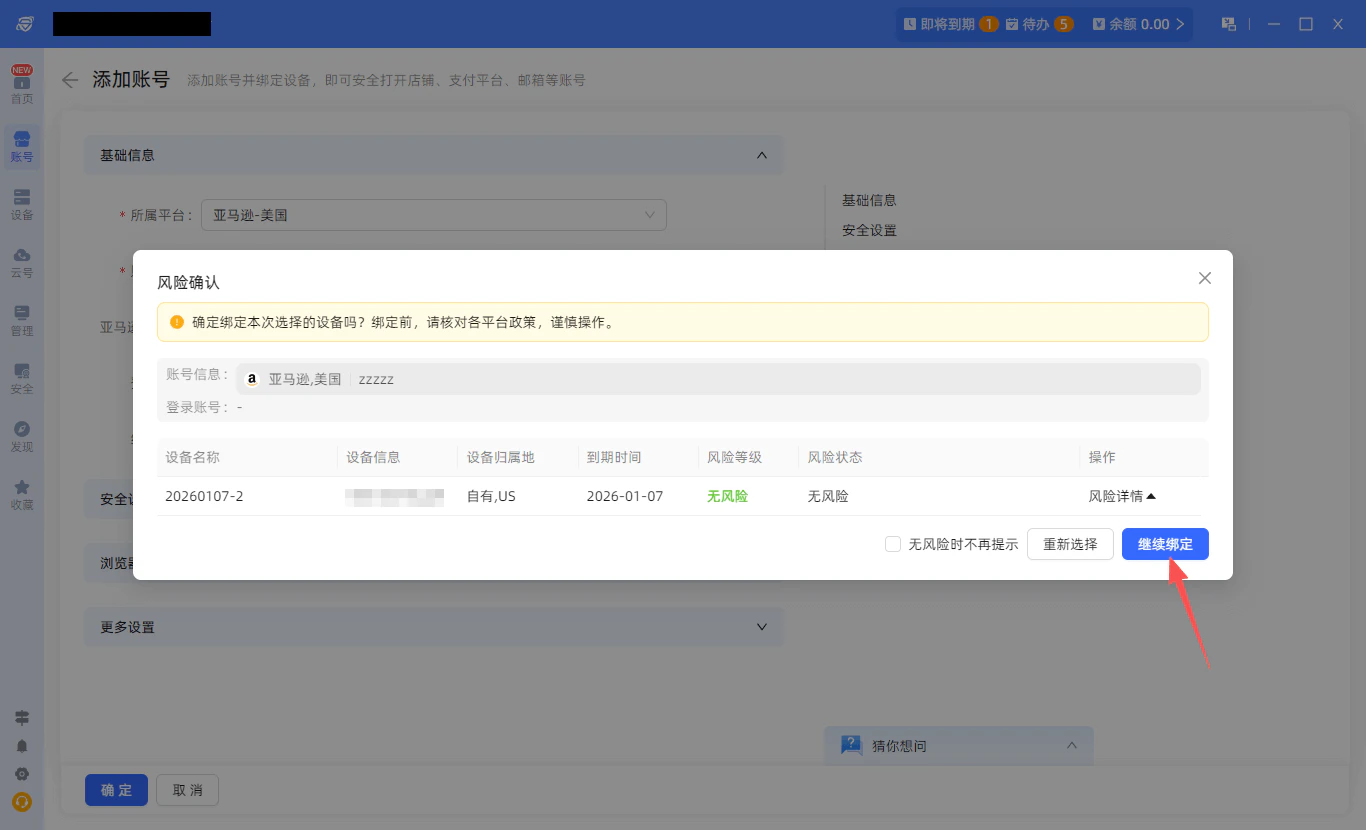
4. 点击 **确定**，并在风险提示中选择 **继续绑定**

<img src="https://mintcdn.com/acme-2c62d9fa/n1p5_UTMKVe_S6VC/res/images/Zi6-image.png?fit=max&auto=format&n=n1p5_UTMKVe_S6VC&q=85&s=eefdb3fc6a5d6d14502fa1de65499fc2" alt="添加账号配置界面" width="1366" height="830" data-path="res/images/Zi6-image.png" />

<img src="https://mintcdn.com/acme-2c62d9fa/n1p5_UTMKVe_S6VC/res/images/Zi7-image.png?fit=max&auto=format&n=n1p5_UTMKVe_S6VC&q=85&s=b488fb1f072a9bbbef064ccec503a714" alt="绑定设备选择界面" width="1366" height="830" data-path="res/images/Zi7-image.png" />

<img src="https://mintcdn.com/acme-2c62d9fa/n1p5_UTMKVe_S6VC/res/images/Zi8-image.png?fit=max&auto=format&n=n1p5_UTMKVe_S6VC&q=85&s=d1a38d83a337bd0a4f173086292a1e8d" alt="风险提示确认页面" width="1366" height="830" data-path="res/images/Zi8-image.png" />

### 步骤八：启动账号并访问浏览器

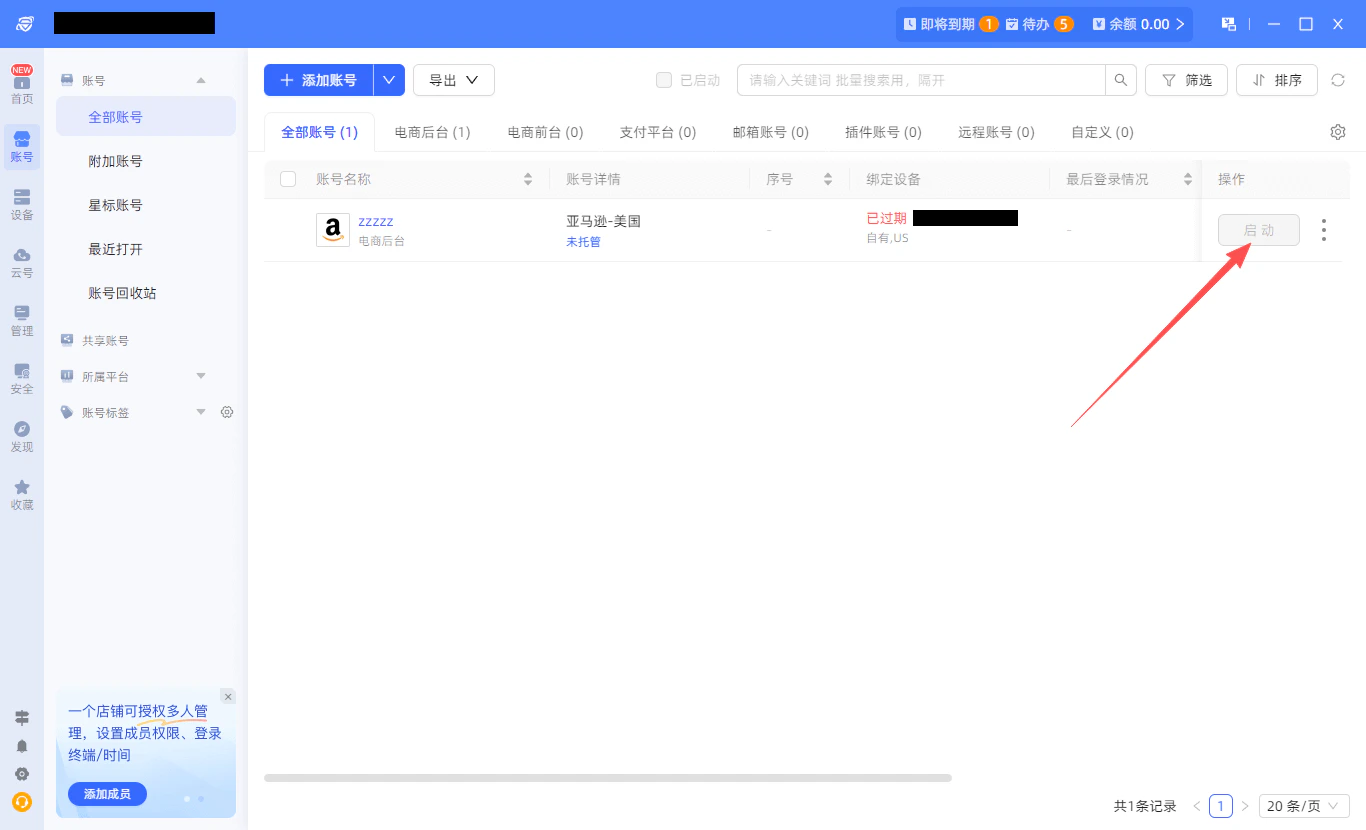
在 **账号 → 全部账号** 界面，找到刚刚创建的账号，点击 **启动** 按钮打开浏览器。

<img src="https://mintcdn.com/acme-2c62d9fa/n1p5_UTMKVe_S6VC/res/images/Zi9-image.png?fit=max&auto=format&n=n1p5_UTMKVe_S6VC&q=85&s=2cf679ebbd906136ecacec6926afb0ab" alt="启动已配置账号" width="1366" height="830" data-path="res/images/Zi9-image.png" />

### 步骤九：验证代理IP

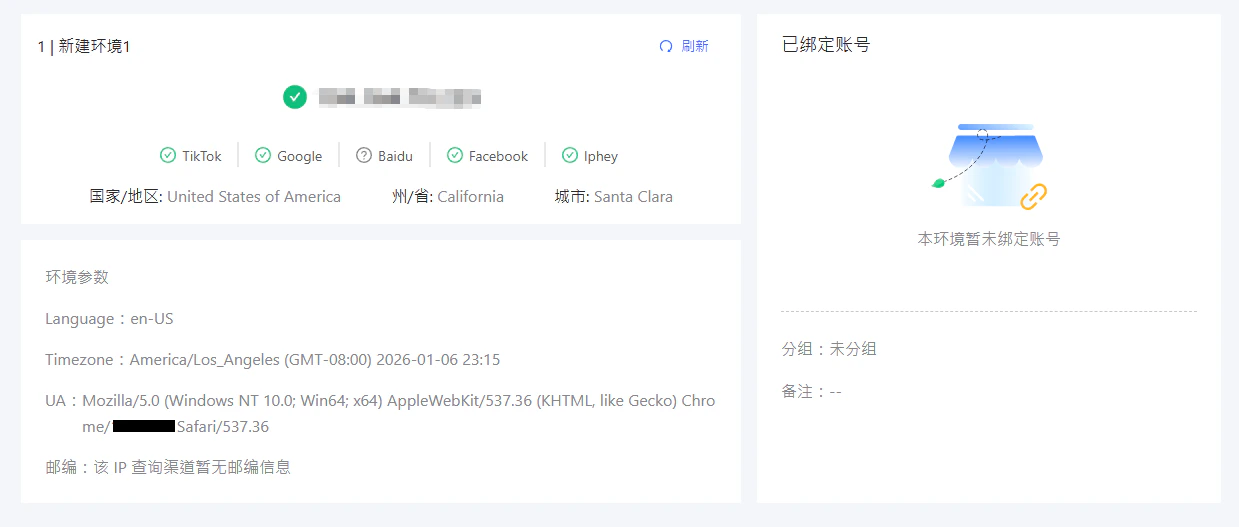
在打开的浏览器中访问IP检测网站，确认显示的IP地址与Ip2up提供的代理IP一致。

<img src="https://mintcdn.com/acme-2c62d9fa/n1p5_UTMKVe_S6VC/res/images/Zi10-image.png?fit=max&auto=format&n=n1p5_UTMKVe_S6VC&q=85&s=43b6ca64253fa4d124c4335925afff97" alt="代理IP验证页面" width="1239" height="527" data-path="res/images/Zi10-image.png" />

✅ **至此，已成功在紫鸟指纹浏览器中配置了Ip2up代理IP，可开始进行安全、隔离的多账号操作。**