
All proxy products of the platform need to be used in an overseas network environment, which requires customers to configure themselves.
This article will introduce how to configure the API Whitelist for dynamic residential proxies on the Ip2up platform to securely obtain proxy information via the API interface.

1. Select Whitelist

After logging into the Ip2up platform, click Dynamic Residential Proxy in the left menu, then select the Whitelist option in the interface. Whitelist Management Entry
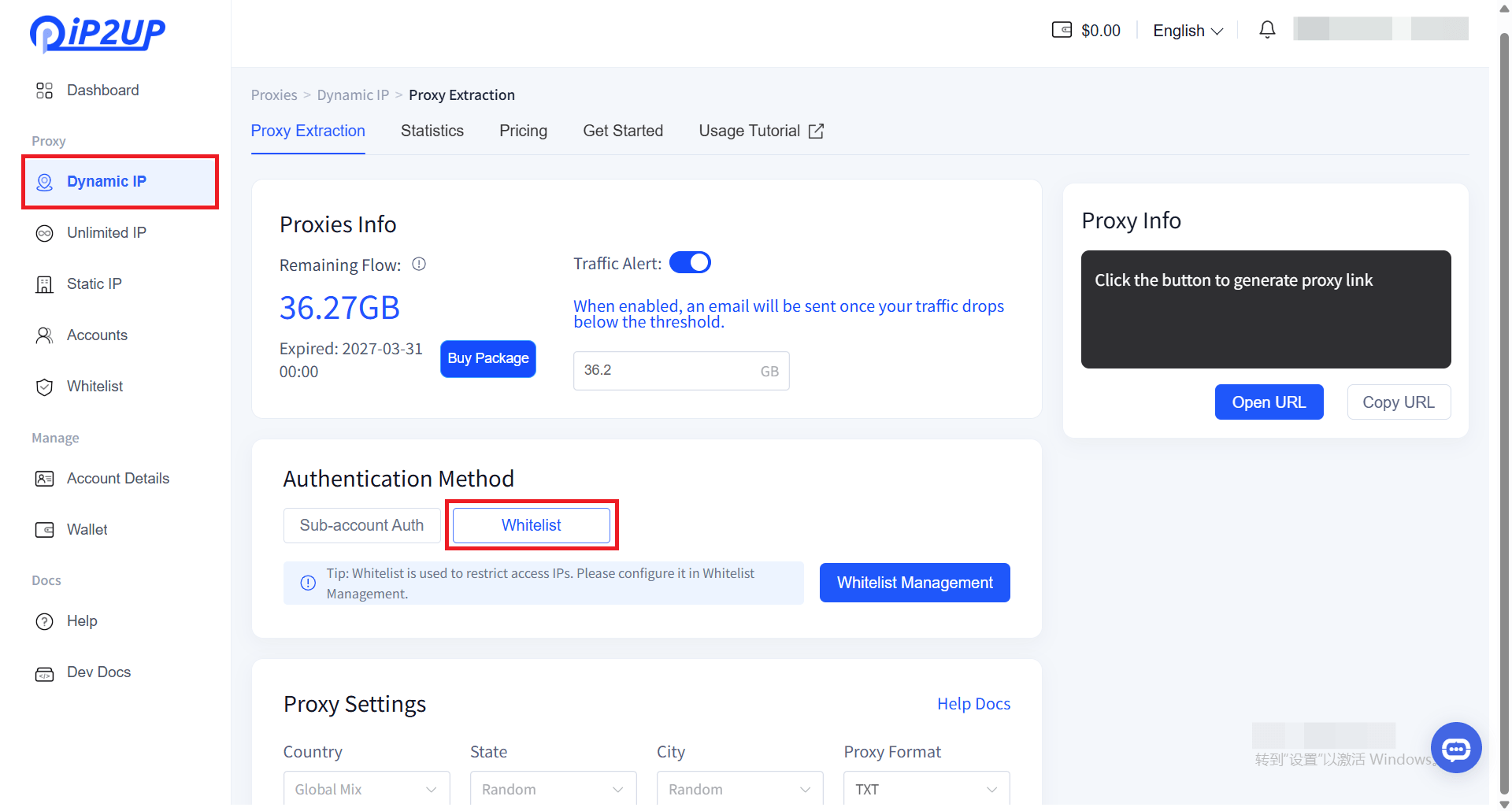
2. Manage Whitelist

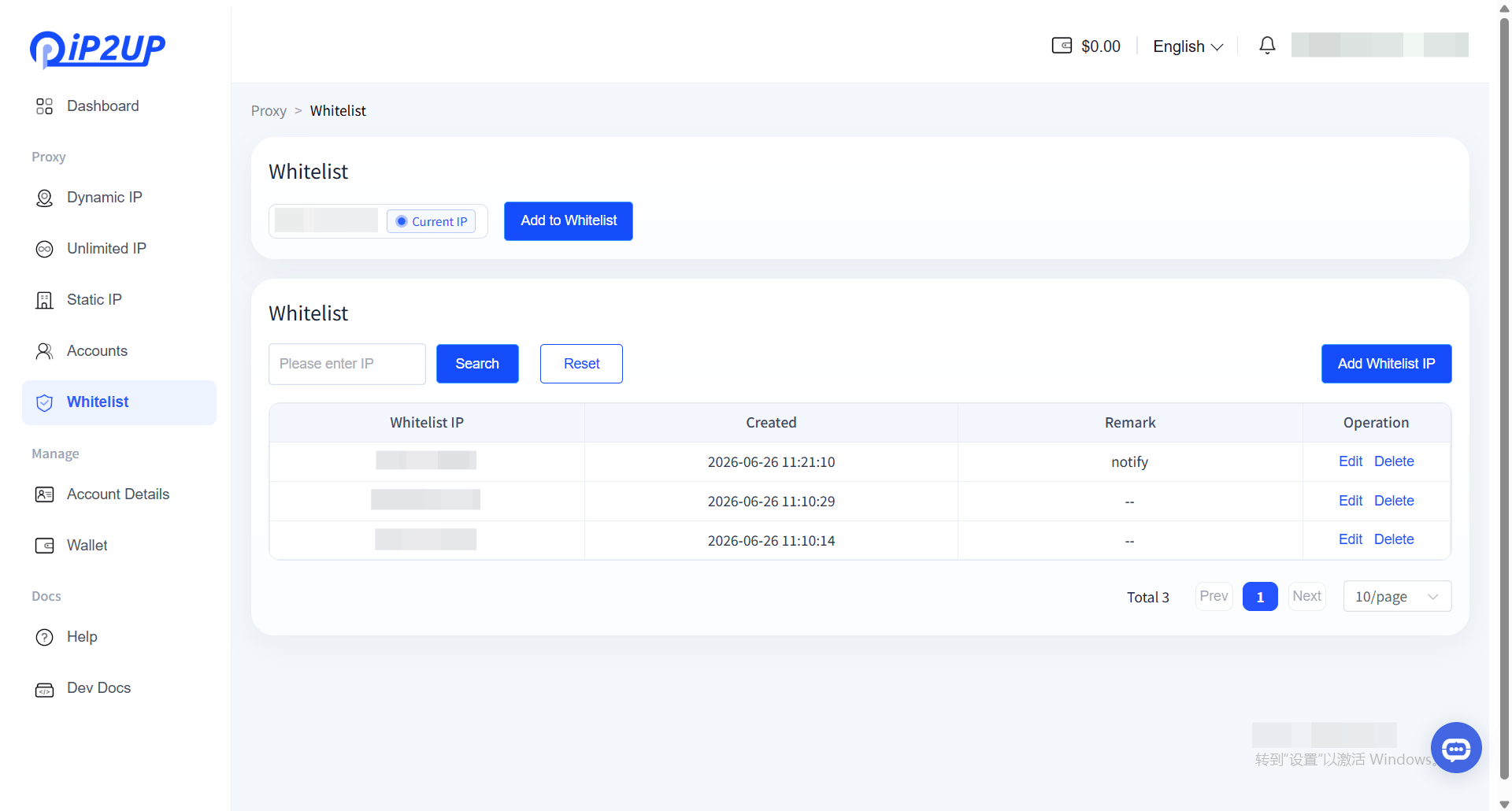
2.1 Add to Whitelist Click the Add to Whitelist button, and the system will automatically add your current public IP address to the whitelist. 2.2 Delete Whitelist IP In the whitelist list, find the IP address you want to delete and click the Delete button on the right to remove it. Whitelist Add and Delete Interface 2.3 Batch Add to Whitelist To manually add multiple IP addresses:
  • Enter IP addresses in the input box (one per line)
  • Optionally add remarks for identification and management
  • Click the Confirm button to complete the addition
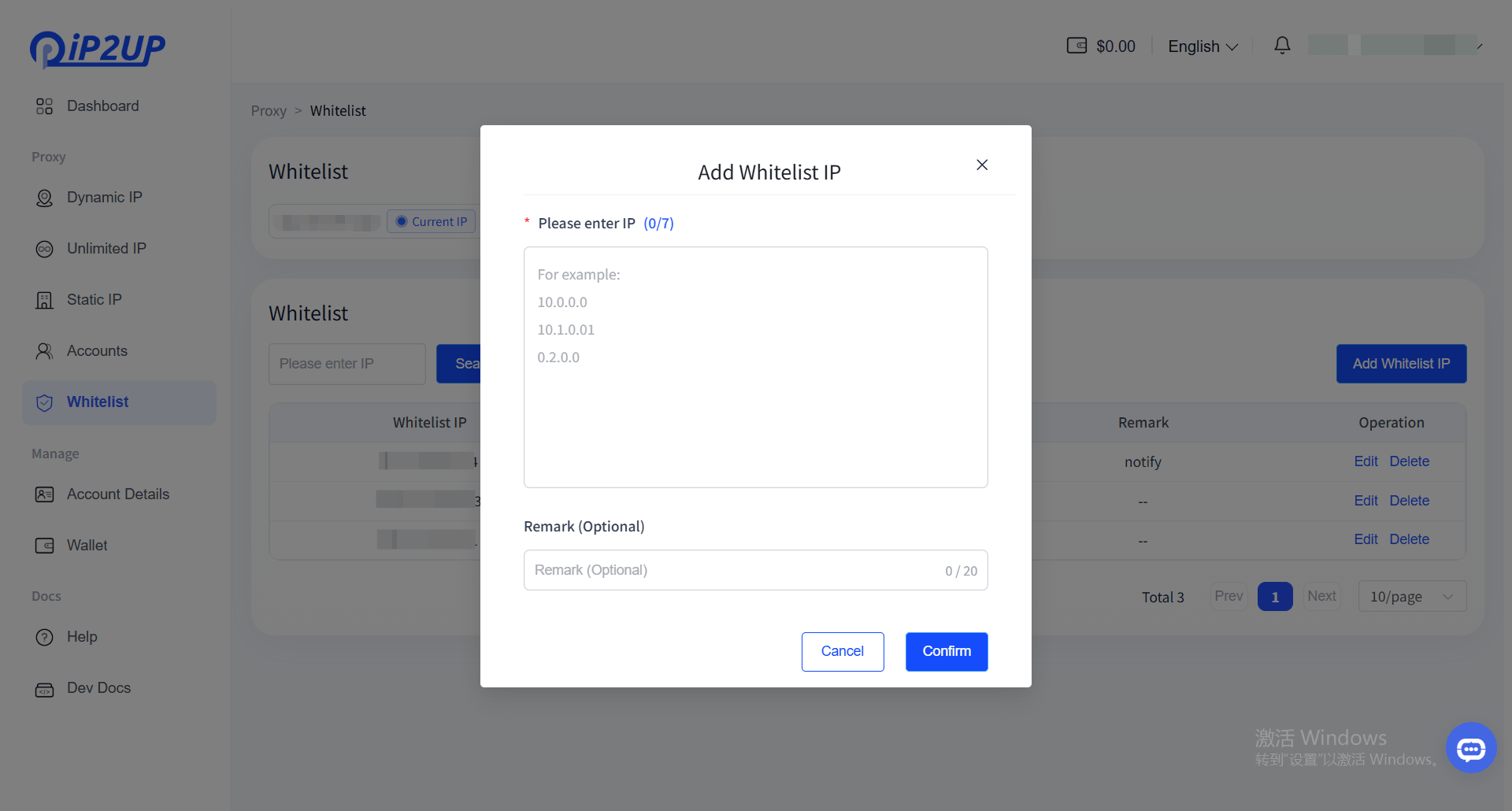
Batch Add IP Interface

3. Configure Proxy Parameters

API Parameter Description
ParameterTypeRequiredDescription
modestringYesSession type: rotating (rotating IP), sticky (sticky IP)
hoststringYesProxy gateway address
protocolstringYesProxy protocol: http or socks5
countrystringNoCountry code, e.g., US (random if not specified)
statestringNoState/region code, e.g., AK (must be used with country)
citystringNoCity name, e.g., Bethel (must be used with country and state)
countintYesNumber of proxies to generate, supports any integer from 1 to 100
formatstringYesOutput format: txt (text format), json (JSON format)
sessionTimeintNoSticky IP duration (minutes), 1 to 70, only valid when mode=sticky
Configuration Steps 3.1 Select Geographic Location
  • Select a specific country/region
  • Or select Random Location to be automatically assigned by the system
3.2 Select Proxy Format
  • TXT: Text format
  • JSON: JSON format
3.3 Select Proxy Protocol Supports HTTP and SOCKS5 proxy protocols. Please choose based on your actual usage scenario. 3.4 Select Proxy Address The system will automatically assign an available proxy gateway address based on your configuration. 3.5 Configure Session Type
  • Rotating IP: Automatically changes IP address with each new request
  • Sticky IP: Maintains the same IP address for a duration of 1 to 70 minutes
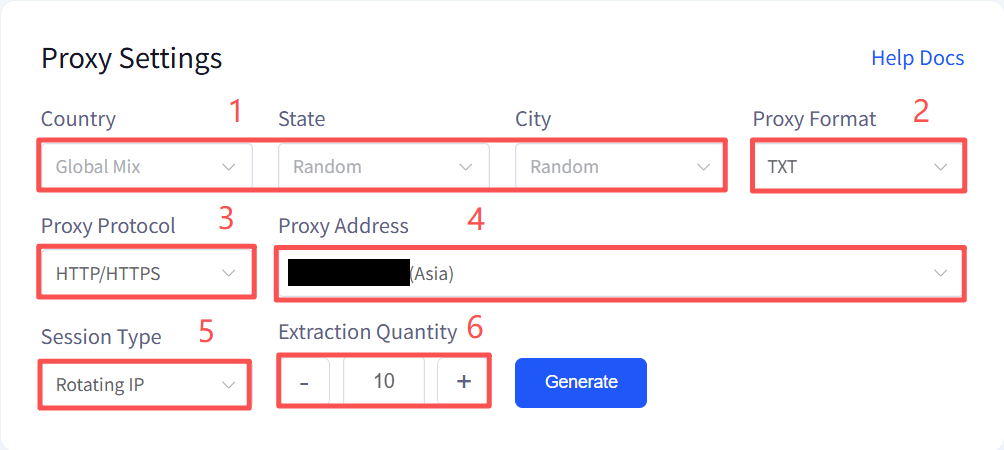
3.6 Set Generation Quantity Select the number of proxies to generate, supports any integer between 1 and 100. Proxy Parameter Configuration Interface

4. Generate and Obtain Proxy Information

  1. Click the Generate Proxy button
  2. In the Proxy Information area on the right, the system will display the generated proxy information based on the above configuration
  3. After successful generation, you can:
    • Directly click Open URL to view the generated proxy list in your browser
    • Or click Copy URL to get the API link for programmatic use
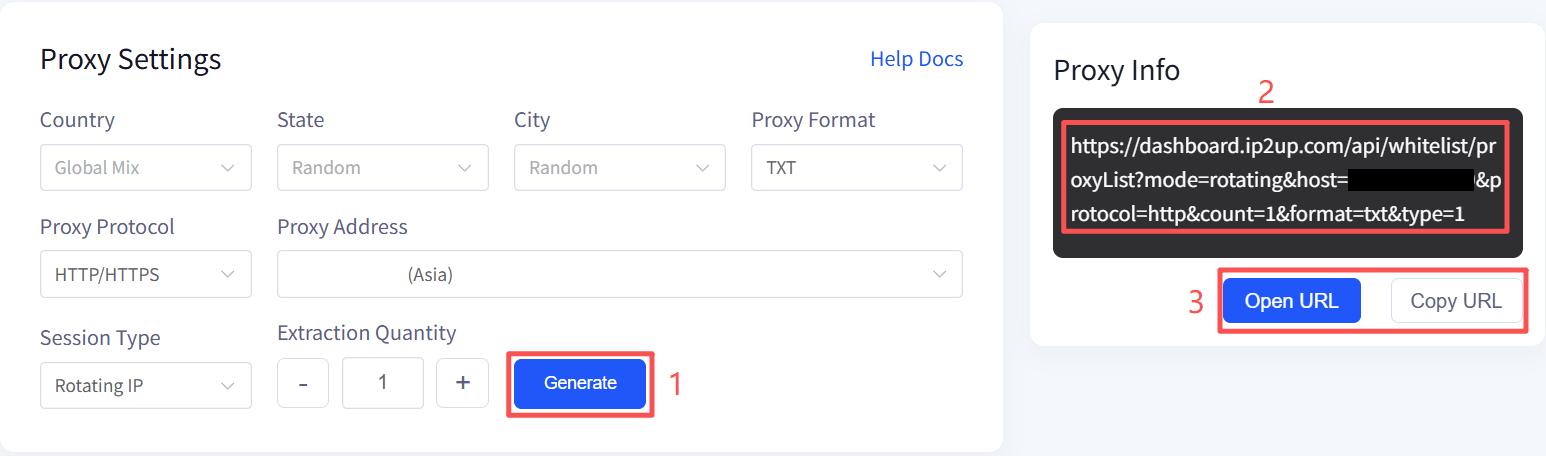
Proxy Information Generation and Retrieval Interface At this point, you have successfully configured the API whitelist for dynamic residential proxies and can obtain proxy information via the API link.
Last modified on April 15, 2026