
Operating Steps
1. Open Wi-Fi Settings
Open Settings on your phone → tap WLAN or Wi-Fi (the name may vary slightly by device brand).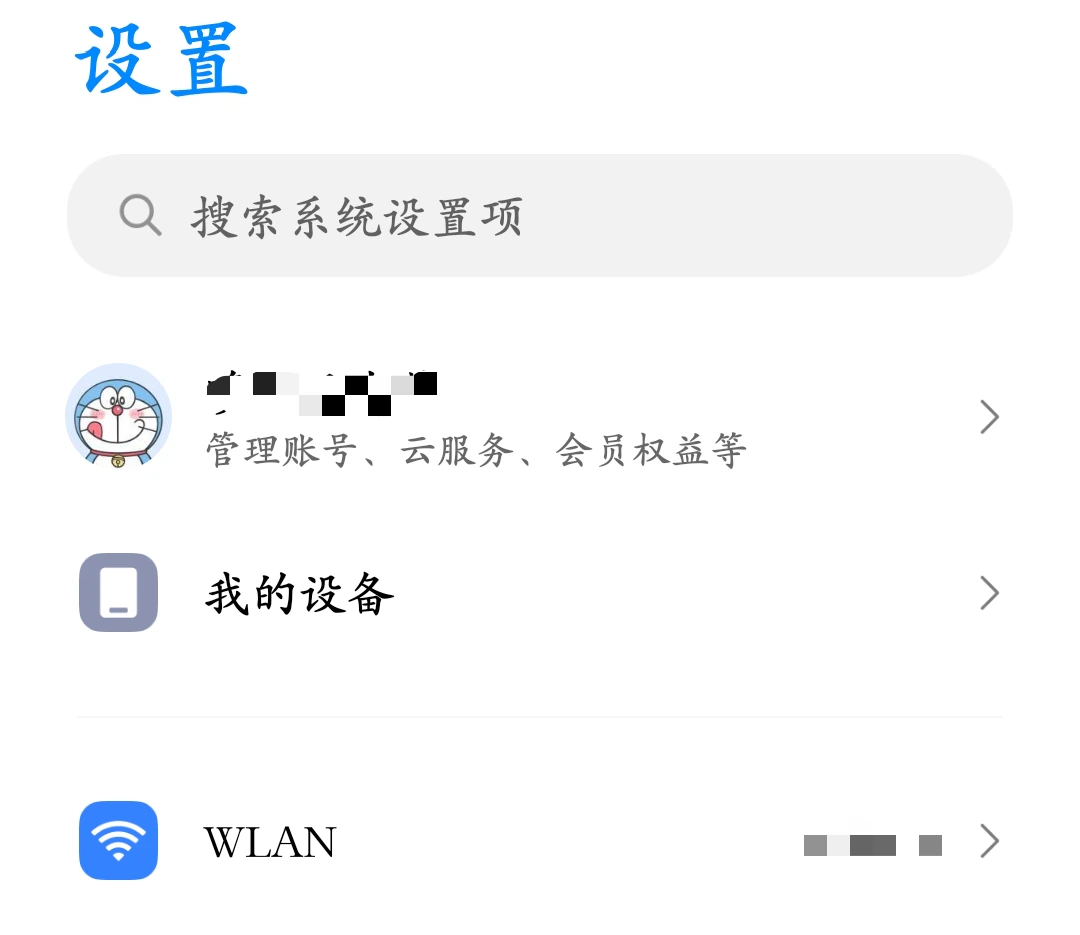
2. Open Connected Network Configuration
In the Wi-Fi list, find the currently connected network. Tap the settings icon on the right, or long-press the network and select Modify network or Advanced options.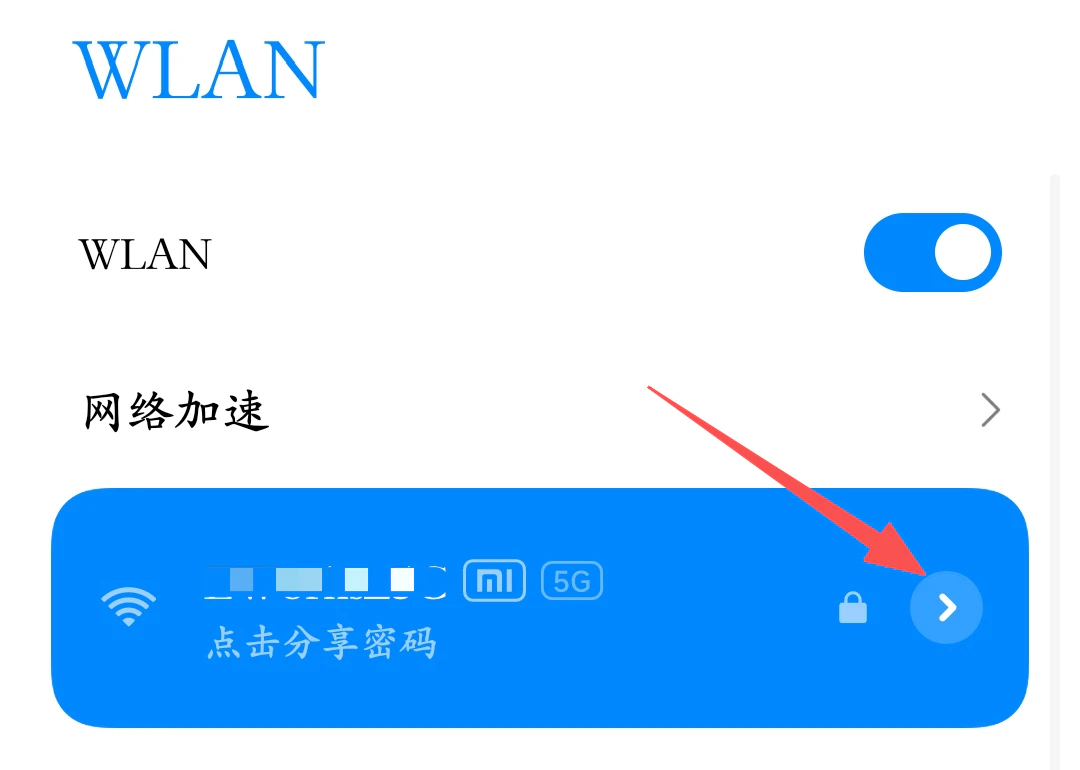
3. Configure the Proxy Server
- In the advanced settings, find the Proxy option and set it to Manual.
- Enter the following information:
- Hostname: Proxy server IP address or domain name
- Port: Proxy service port number
- Tap Save or OK in the top-right corner to complete the configuration.
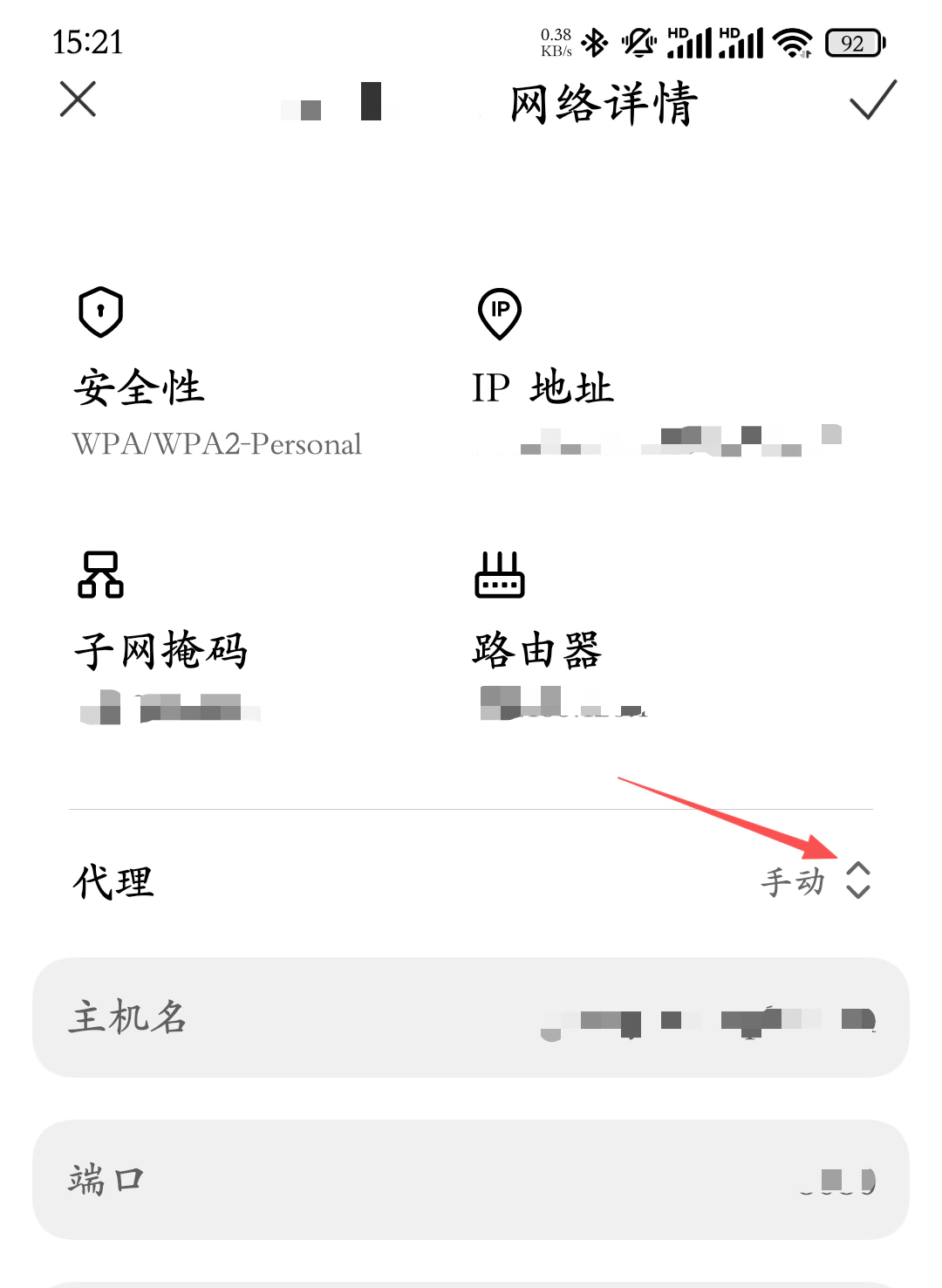
Tip: On some Android systems, you may need to expand Advanced options before the proxy settings are visible.
4. Enter Authentication Information (If Required)
If the proxy service requires username and password authentication, the system will usually prompt for credentials when you first access the network. You may also open any webpage in a browser and enter the username and password when prompted.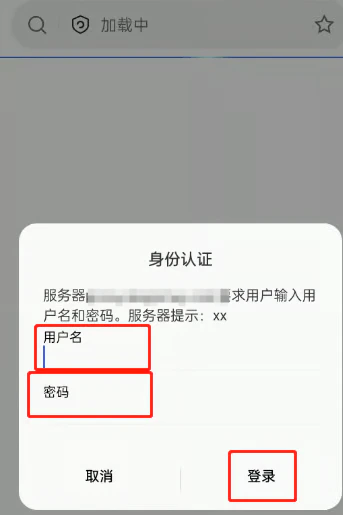
5. Verify the Proxy Connection
Open any browser (such as Chrome) and visit an IP detection website to check whether the displayed IP address matches the proxy IP you configured. If they match, the proxy setup is successful.Notes
- This configuration applies at the Wi-Fi level and only takes effect for the current Wi-Fi network.
- You must reconfigure the proxy after switching to a different Wi-Fi network.
- Ensure that the proxy server supports your intended use case and that all information is entered correctly.