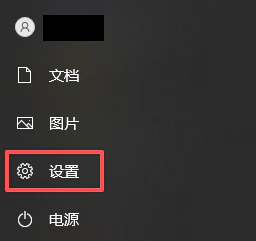
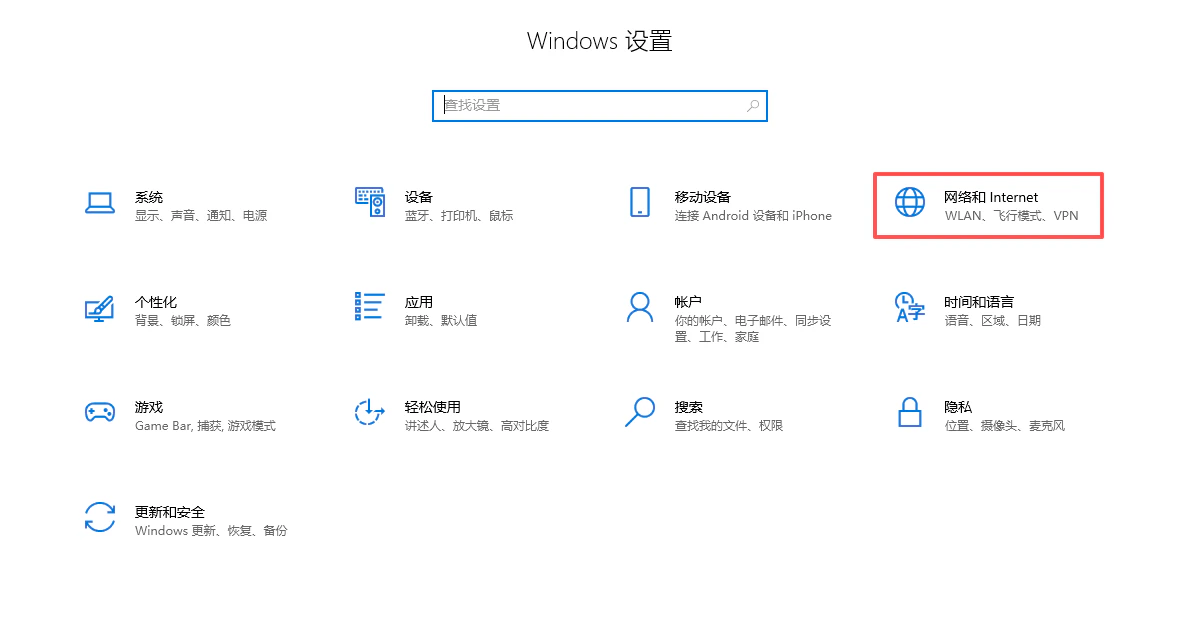
All proxy products on the platform must be used in an overseas network environment. Users are required to configure the overseas network environment on their own.
Before integrating a proxy into a Windows 10 system, please ensure that you have obtained valid proxy service information (such as server address and port) and have confirmed that the proxy service is operating normally.
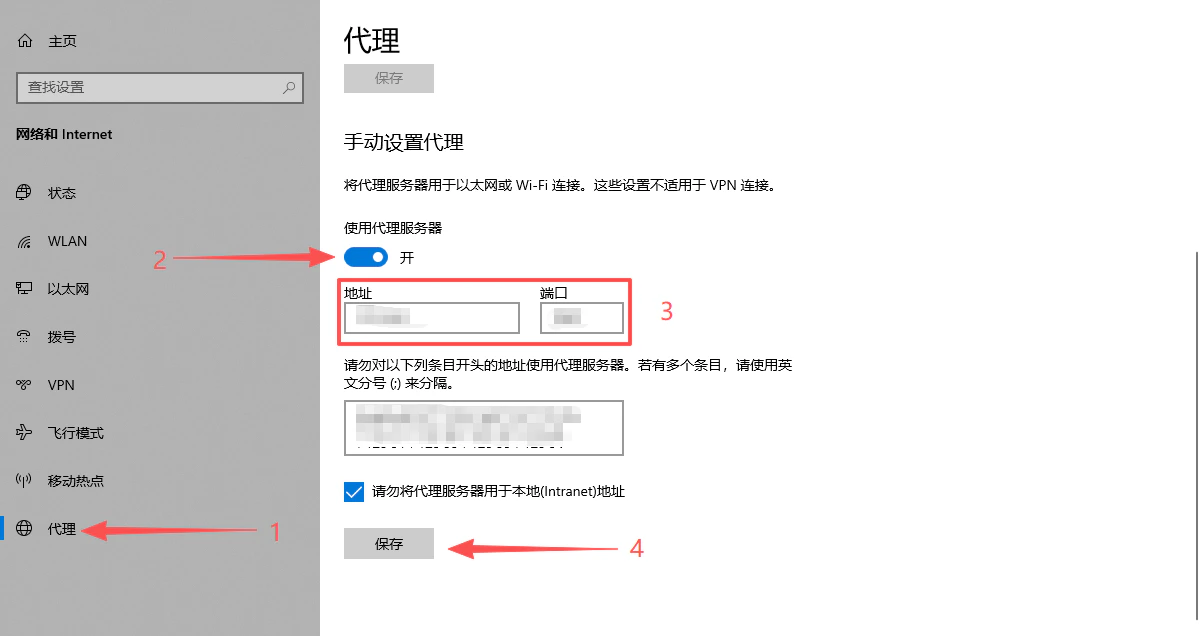
In the Manual proxy setup section on the right, turn on Use a proxy server.
Enter the following information:
Address: Proxy server IP address or domain name
Port: Proxy service port number
Click Save to complete the setup.
Tip: If you need to set exception addresses (websites that should not use the proxy), you can enter them in the field under “Do not use the proxy server for addresses that begin with…”.
Open any browser (such as Chrome or Edge) and visit an IP detection website. Check whether the displayed IP address matches the proxy IP you configured. If it does, the proxy setup is successful.